
OpenEMS
OpenEMS PCB Simulation Guide1 Introduction
This guide provides a practical, step-by-step approach to running 3D electromagnetic PCB simulations using open-source software. Instead of focusing purely on complex theory, this document is highly visual and workflow-oriented. It will take you from a basic 2D board layout all the way to advanced field visualization, giving you the tools to analyze, troubleshoot, and perfect your high-frequency designs with confidence. The workflow and methodology detailed in these steps are directly adapted from the excellent YouTube tutorial available at the video below.
2 Guide to PCB Simulation with OpenEMS
Before diving into the step-by-step simulation, you will need to set up your digital workspace. Because this workflow relies heavily on a chain of open-source software, making sure you have the right tools installed is crucial for a smooth process.
First, you will need a completed board design saved as a .kicad_pcb file, which is typically created in KiCad. For the 3D modeling and simulation setup, you will be using FreeCAD. It is essential that FreeCAD has the custom OpenEMS macro installed and configured beforehand. The heavy mathematical lifting is performed by the OpenEMS FDTD engine itself, which comes bundled with AppCSXCAD for geometry validation.
Finally, to render and animate the resulting electromagnetic fields, you will need ParaView. Once you have these programs installed and your PCB file ready, you are all set to begin.
Launch FreeCAD and start with a new, empty document to ensure a clean workspace for the simulation setup.
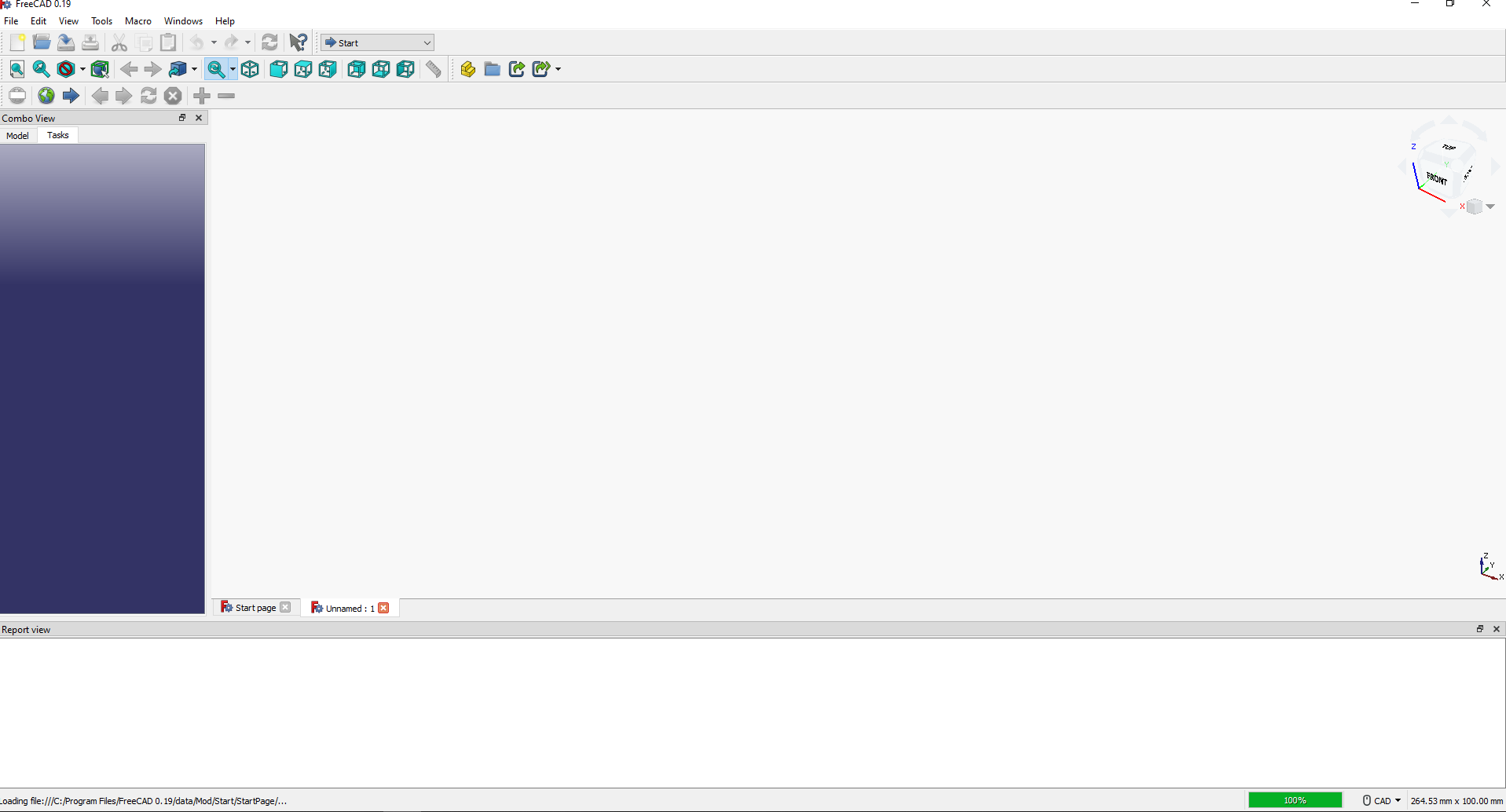
Figure 1 – Initial FreeCAD workspace
Navigate to the Macro menu and run the FreeCAD-OpenEMS-Export.FCMacro script. This bridges FreeCAD with the OpenEMS simulation engine.
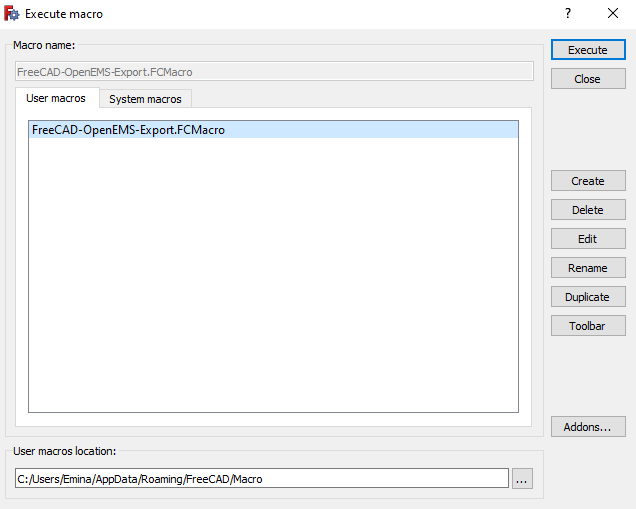
Figure 2 – Executing the OpenEMS export macro
The OpenEMS Simulation Creator window will open. This interface acts as the central hub for assigning materials, configuring the grid, and setting up simulation parameters.
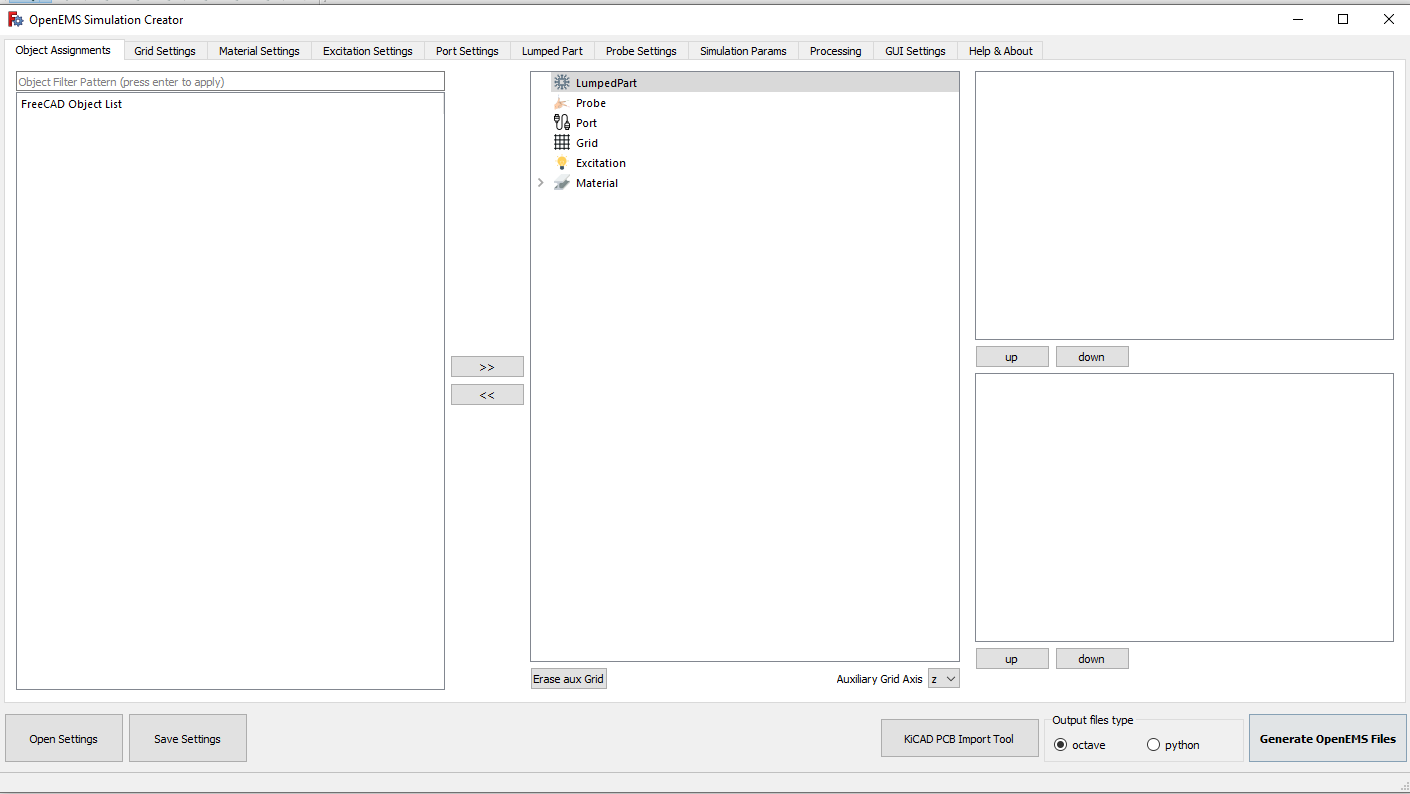
Figure 3 – The OpenEMS Simulation Creator UI
Click the “KiCAD PCB Import Tool” button. Select your .kicad_pcb layout file and ensure “Fuse coppers” is checked so the tool properly generates vias between layers.
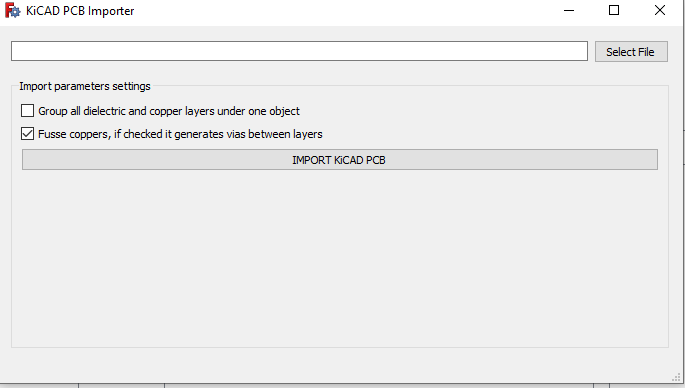
Figure 4 – KiCAD PCB import tool
The tool will read the KiCAD data, populating the “FreeCAD Object List” with individual structural components like outlines, pads, and copper areas.
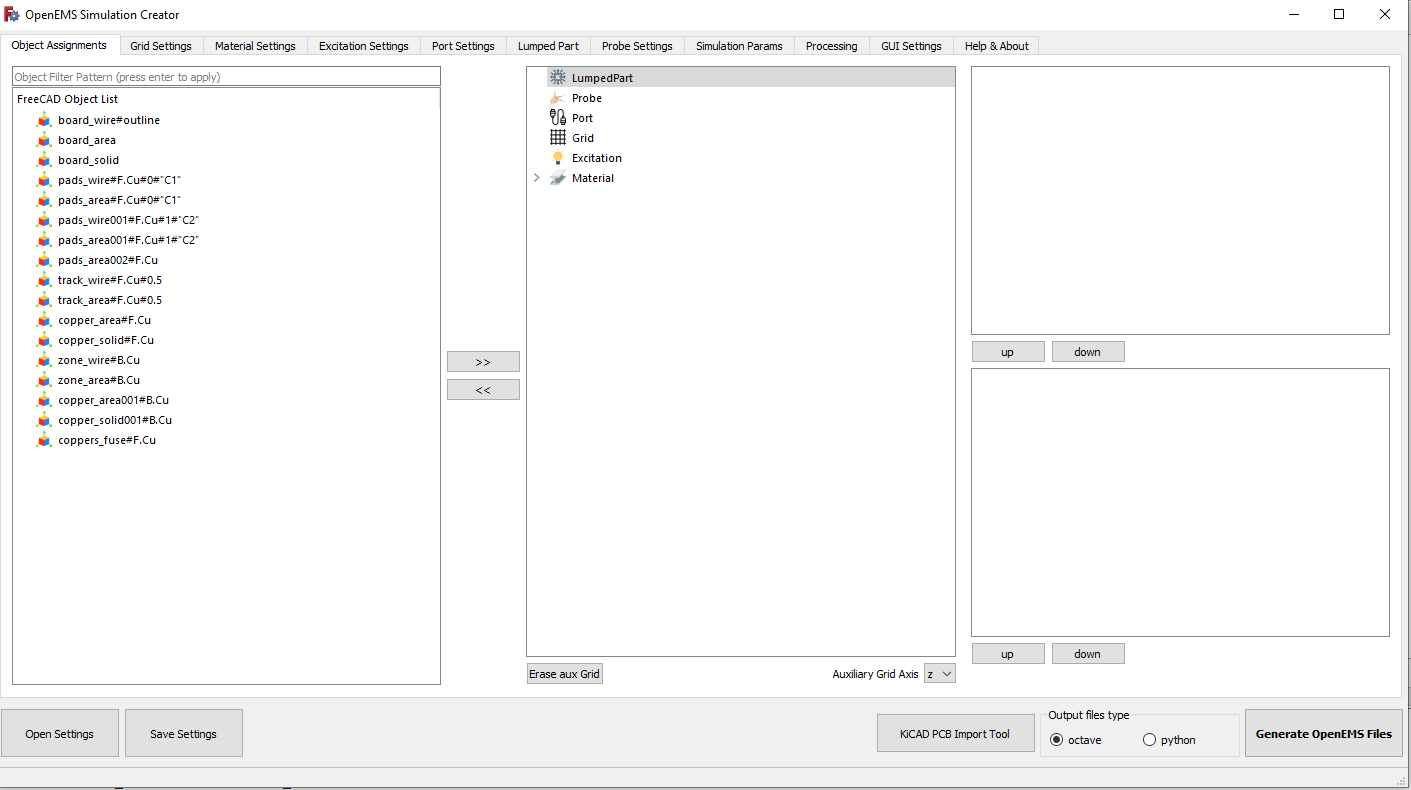
Figure 5 – Loaded 2D board components
Keep an eye on the FreeCAD Report view at the bottom of the screen. The tool handles complex operations in the background to build the 3D geometry. Wait until the log explicitly displays the message “all done” to confirm the process has finished successfully.
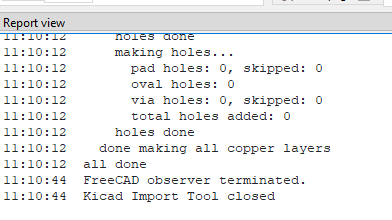
Figure 6 – Generation process in the Report view
The 3D viewport will now display the fully generated physical representation of the PCB, including the dielectric substrate and copper traces.
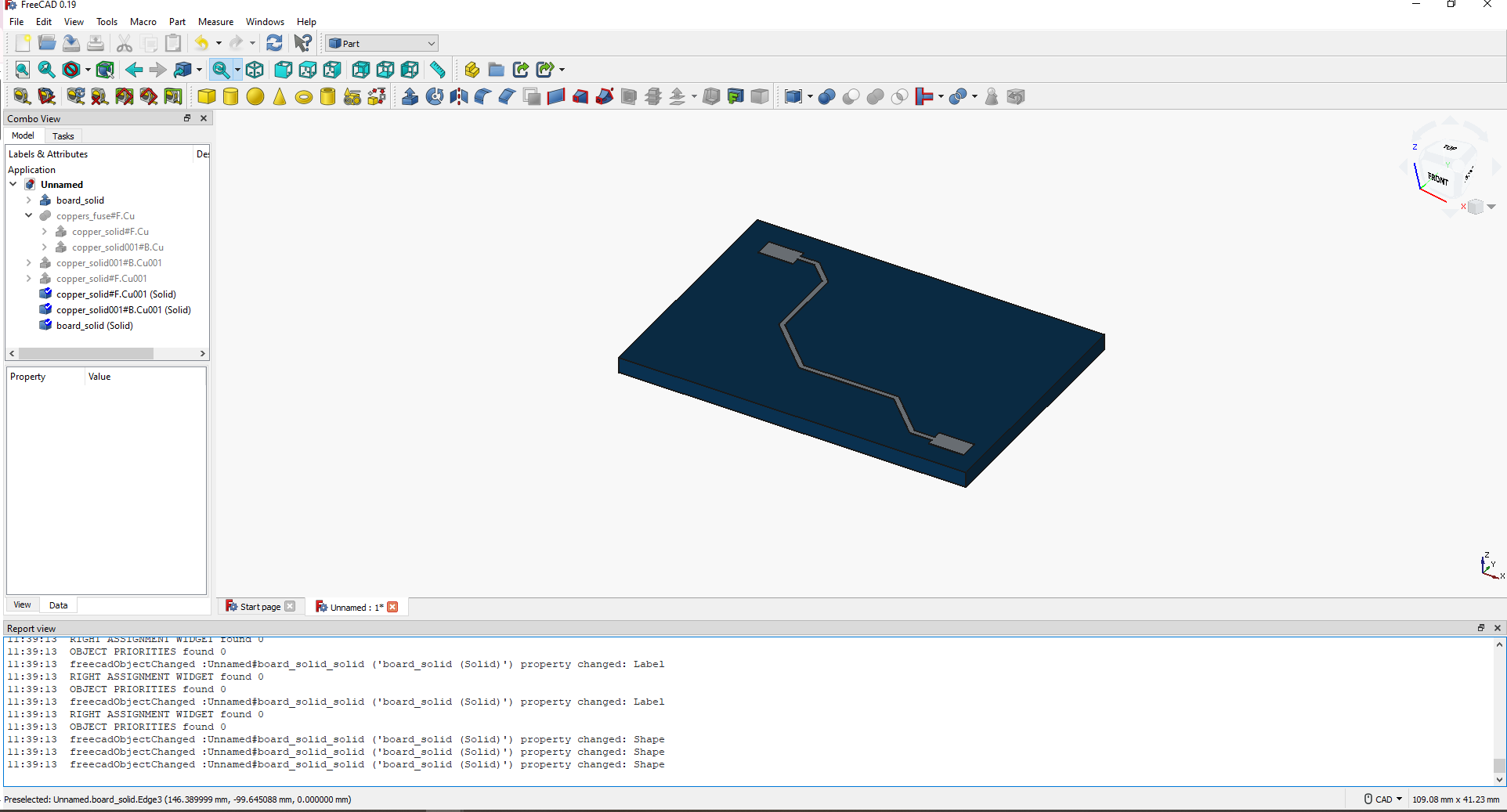
Figure 7 – Fully generated 3D PCB model
In the Combo View, expand the coppers_fuse feature and drag the individual copper layers out into the main project root. Hide the original coppers_fuse object by selecting it and pressing the Spacebar. Finally, select the board and both extracted copper layers, and apply the “Convert to solid” command to ensure the simulation engine treats them as true 3D volumes rather than hollow surfaces.
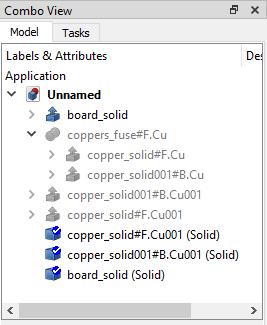
Figure 8 – Reorganizing the imported object tree
To establish the computational domain, you must manually create a solid box that represents the surrounding “air”. Set the dimensions of this box so that it extends exactly 5 mm beyond the PCB geometry on all sides. This ensures the model is completely enclosed and defines the physical limits for the electromagnetic simulation space.
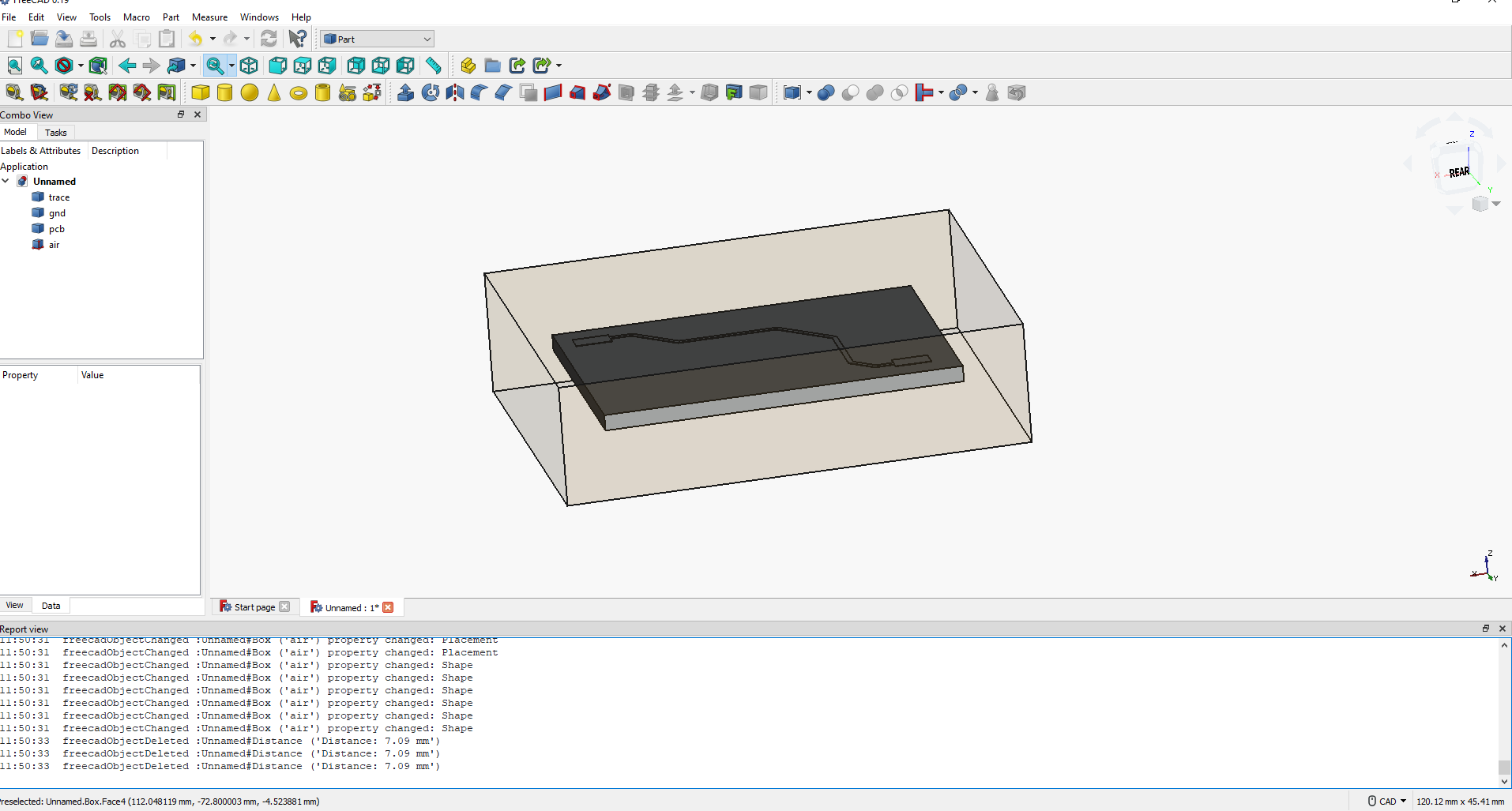
Figure 9 – Establishing the air volume
To establish the computational domain, you must manually create a solid box that represents the surrounding “air”. Set the dimensions of this box so that it extends exactly 5 mm beyond the PCB geometry on all sides. This ensures the model is completely enclosed and defines the physical limits for the electromagnetic simulation space.
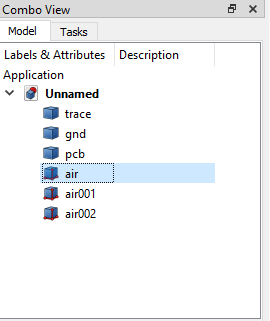
Figure 10 – Simplified logical object tree
To set up the measurement areas, rename the previously created air001 and air002 objects to efield and hfield, respectively. By repurposing these duplicated volume boxes, you establish the exact spatial volumes where the electric and magnetic fields will be recorded during the simulation.
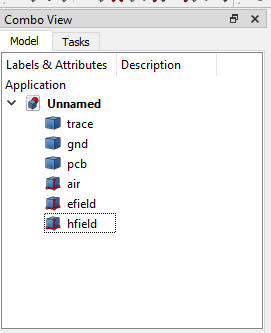
Figure 11 – Adding E-field and H-field probe volumes
In the properties panel, adjust the dimensions for both the efield and hfield boxes. While leaving the length and width as they are, change the height of both objects to exactly 0.50 mm.
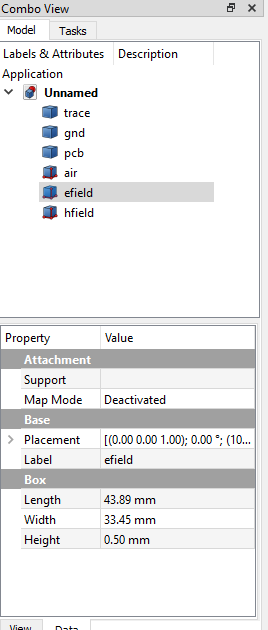
Figure 12 – Setting height for the E-field and H-field probes
In the 3D view, carefully adjust the placement of the efield box along the Z-axis. Position the box so that it sits directly between the top copper layer and the bottom ground layer. Placing the probe inside the dielectric substrate ensures it accurately captures the electromagnetic fields propagating between the traces.
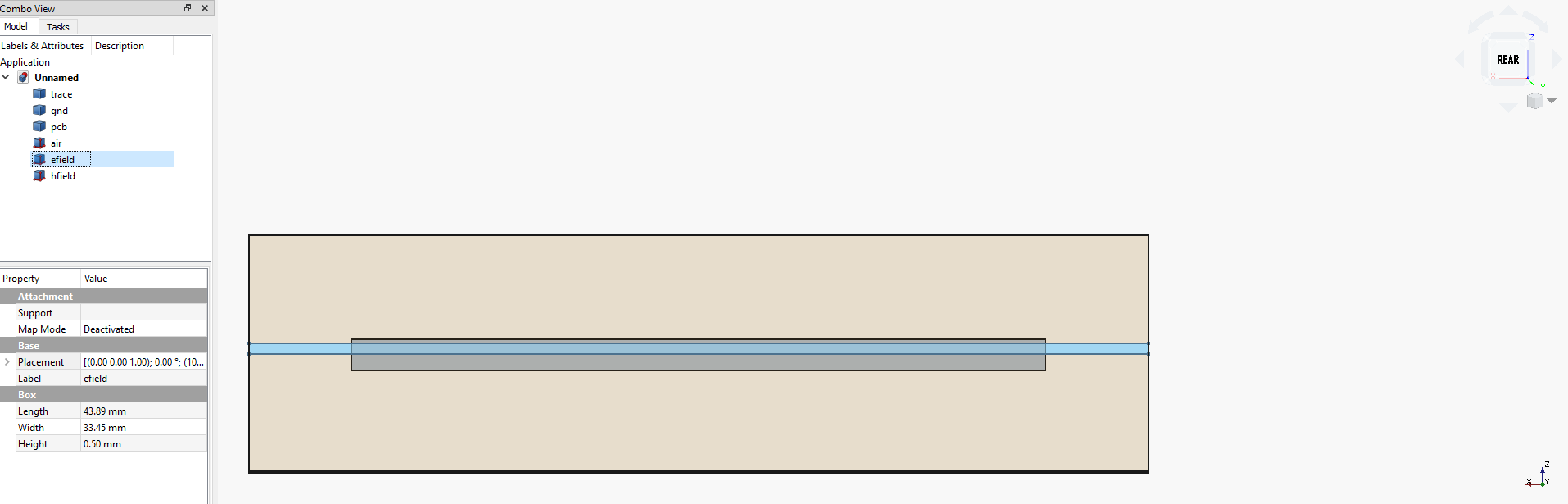
Figure 13 – Aligning the efield probe vertically with top and bottom layer
Next, focus on the placement of the hfield box. Using a close-up view, carefully position it along the Z-axis so that it sits exactly 100.00 μm directly below the efield. This precise vertical offset is crucial for accurately capturing the magnetic field distribution in relation to the electric field.
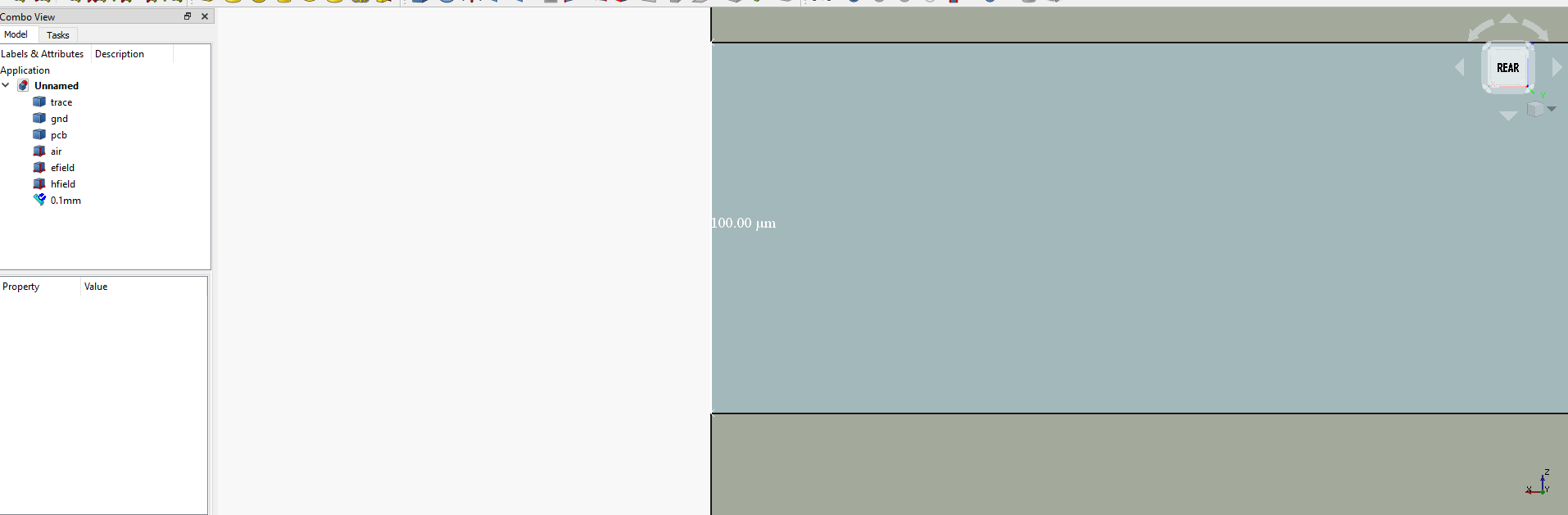
Figure 14 – Verifying the 100 μm vertical distance between the efield and hfield probes
Creating the Input Port add a new primitive object named portin to represent the physical location where the signal will be injected.
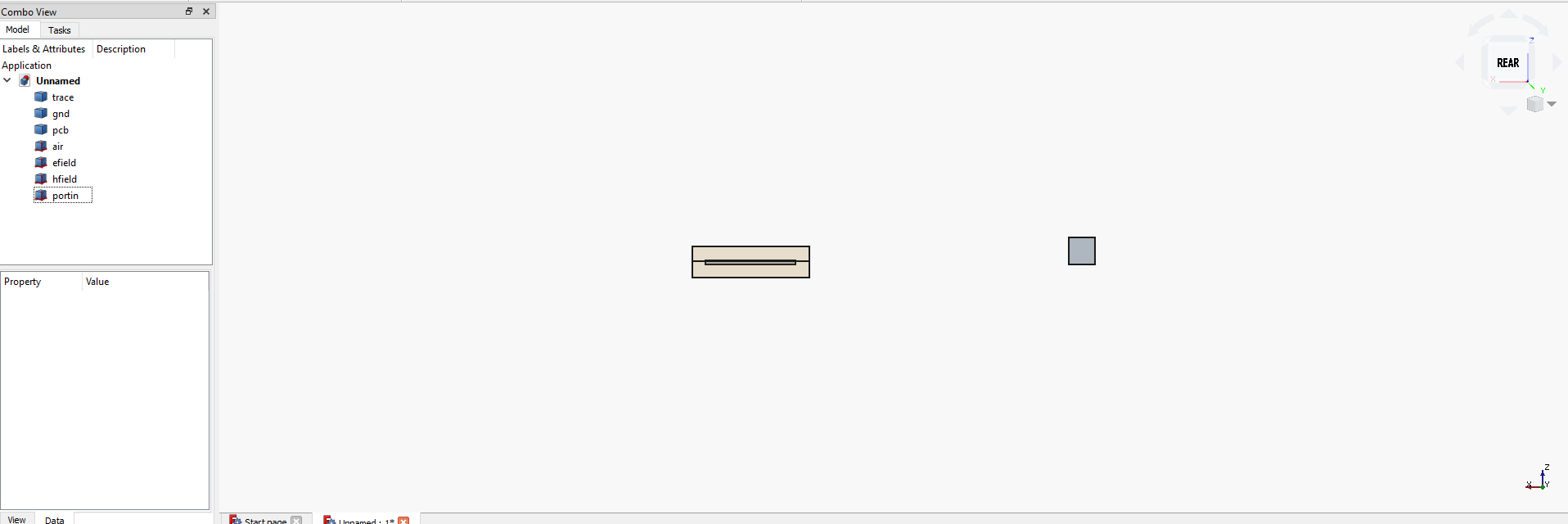
Figure 15 – Adding the input port geometry
Input the exact dimensions and spatial coordinates for the portin box using the Geometric Primitives tool. It is crucial to set the height of this box to match the exact thickness of the PCB substrate (e.g., 1.58 mm).
Visually verify in the 3D view that the portin box perfectly overlaps the starting pad of the copper transmission line. More importantly, ensure the port spans the entire vertical gap between the bottom ground plane and the top copper trace, as this physical connection is necessary to inject the signal correctly (Figure – 16 and Figure – 17).
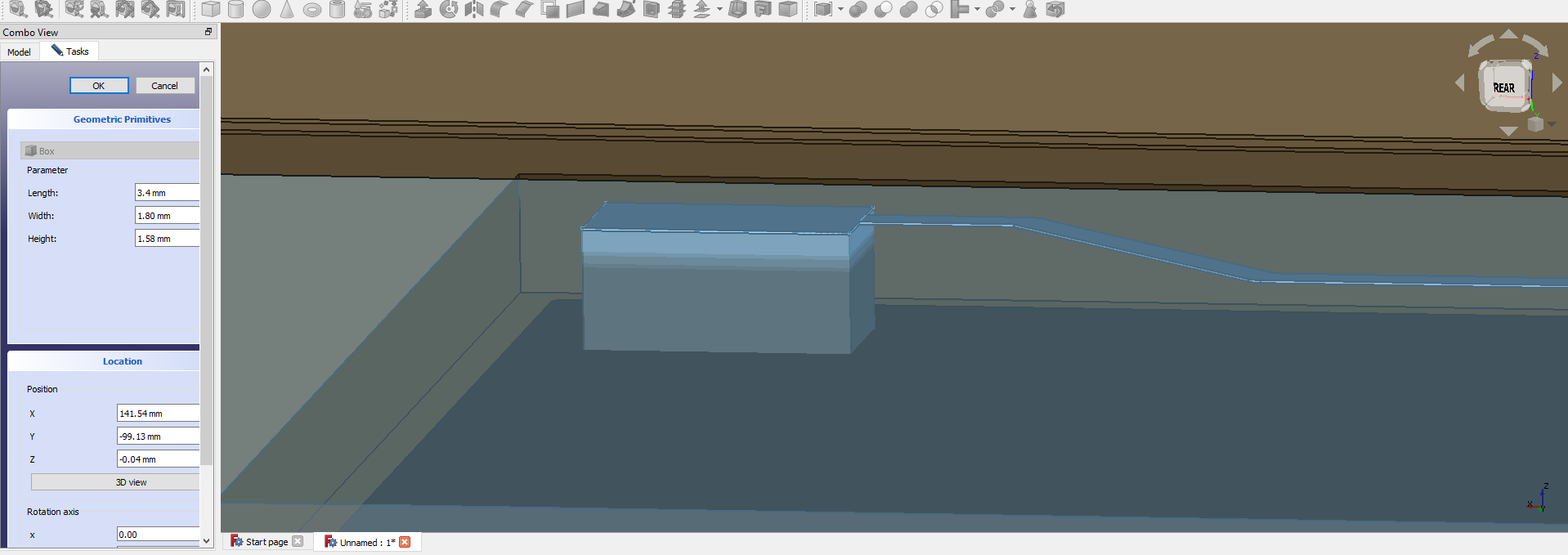
Figure 16 – Setting the dimensions of the input port to match the substrate thickness
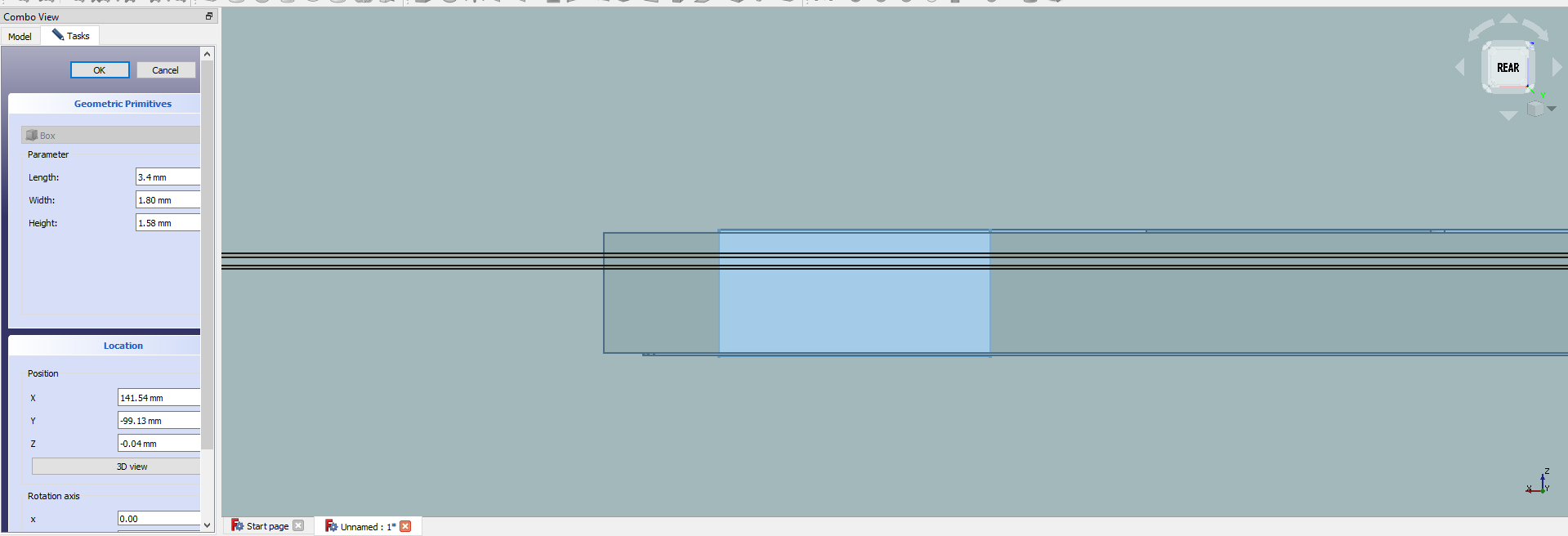
Figure 17 – Aligning the port to bridge the gap between the ground plane and the top trace
In the Simulation Creator, switch to Grid Settings and define a general coarse mesh (xyz) with a fixed distance for the overall domain (Figure 18). Add a finer grid setting (xyfine) with a much smaller resolution to accurately capture the detailed geometry of the copper traces (Figure 19). Create a Z-axis specific grid (zfine) using a fixed count method. This ensures the mesh correctly captures extremely thin vertical layers like the copper plating (Figure 20).
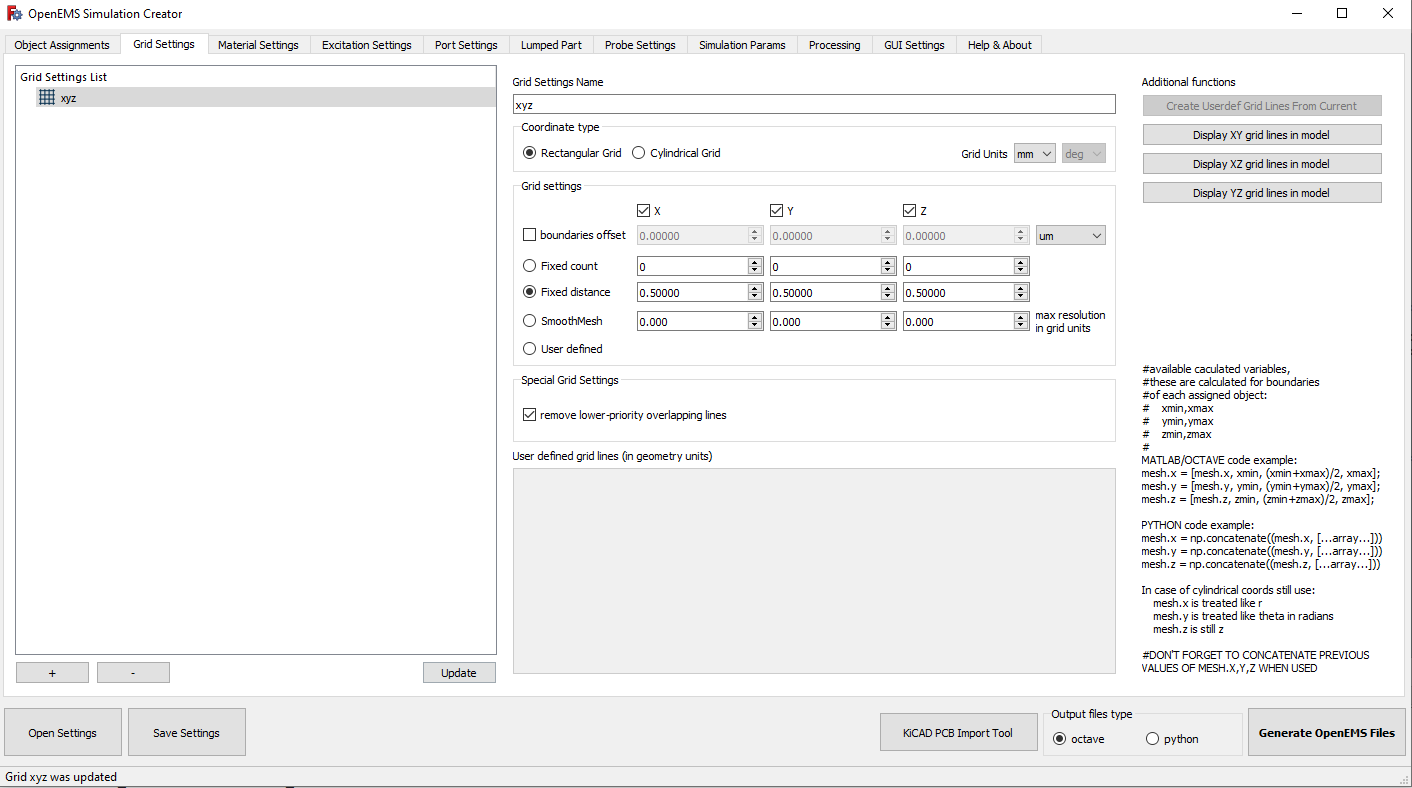
Figure 18 – Setting up the coarse XYZ mesh
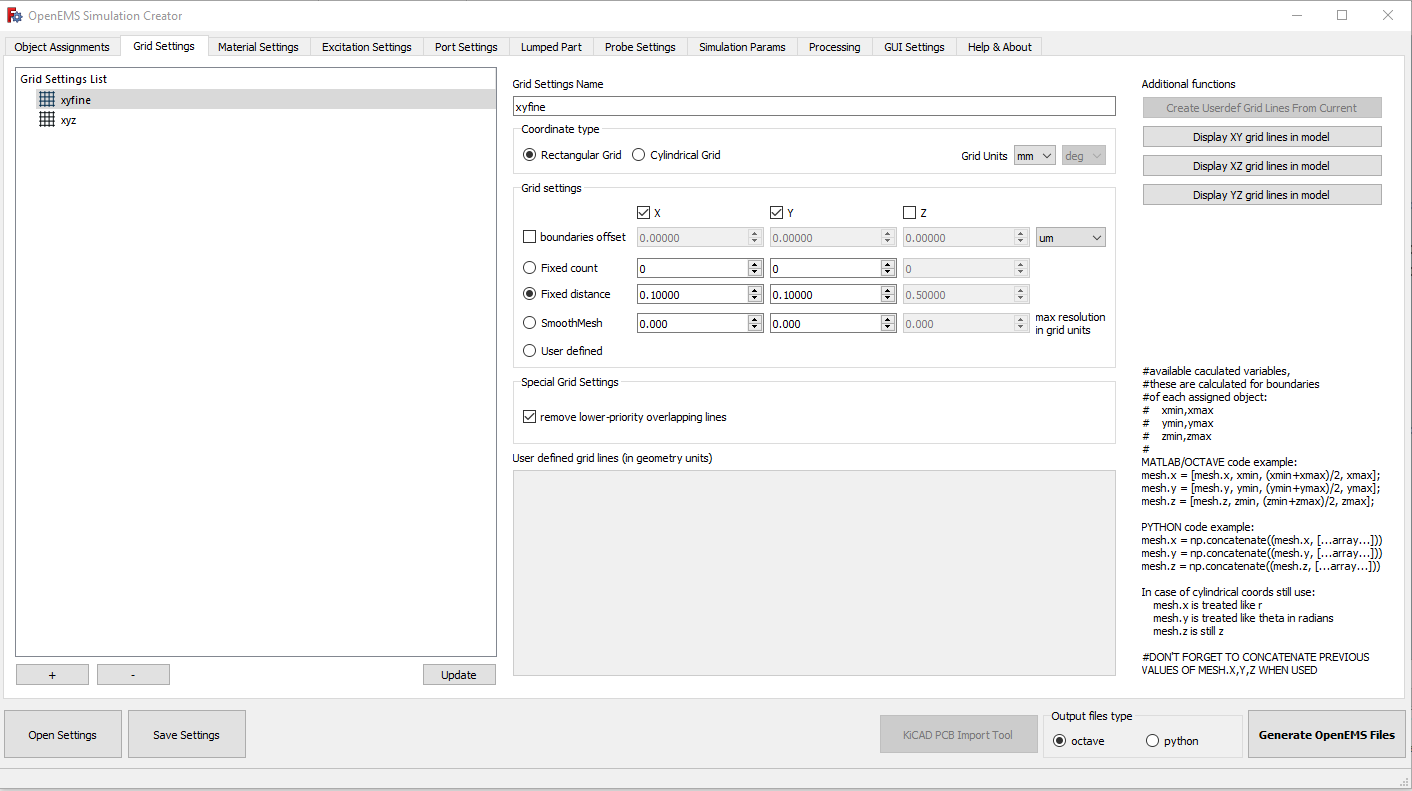
Figure 19 – Creating a fine XY mesh for traces
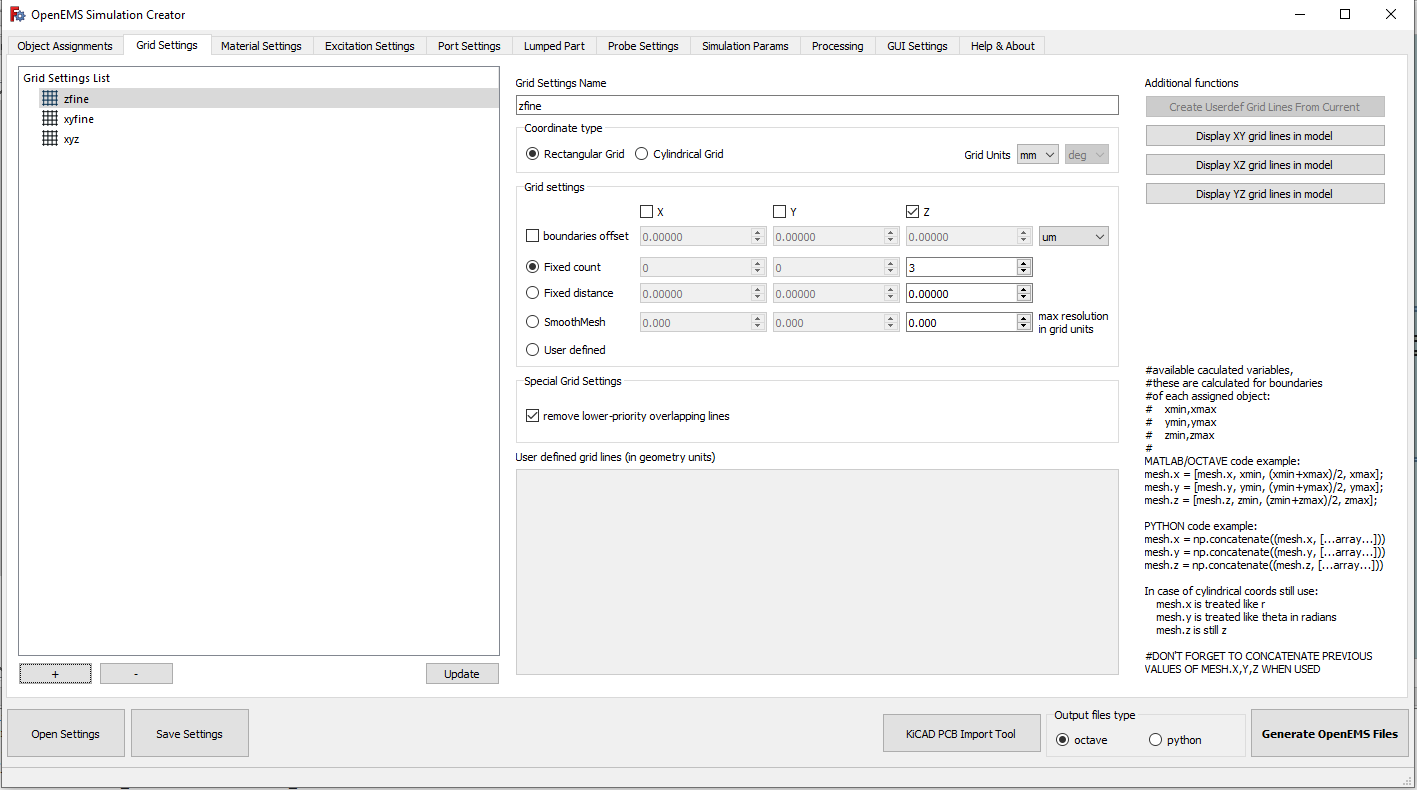
Figure 20 – Defining specific mesh layers for the Z-axis
In Material Settings, review the default PEC material (Figure 21). It will be used for perfectly conducting reference planes like the ground. Create a new metal material named copper to represent the physical characteristics of the PCB traces (Figure 22). Define an air material with an Epsilon and Mue of 1.0 to simulate the vacuum surrounding the board (Figure 23). Add an fr4 material and set its Epsilon (relative permittivity) to match standard dielectric substrate properties (e.g., 4.60) (Figure 24).
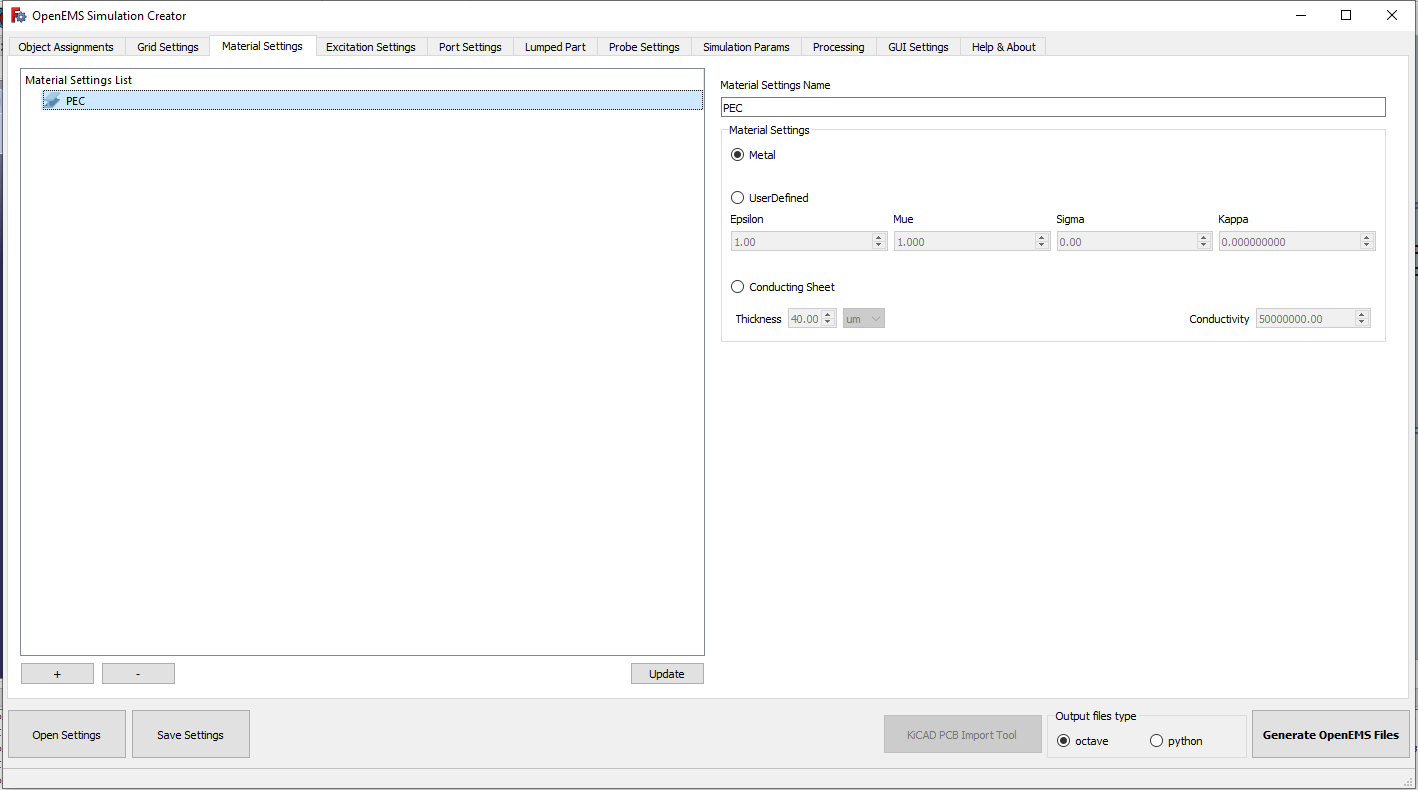
Figure 21 – Default Perfect Electric Conductor (PEC) material
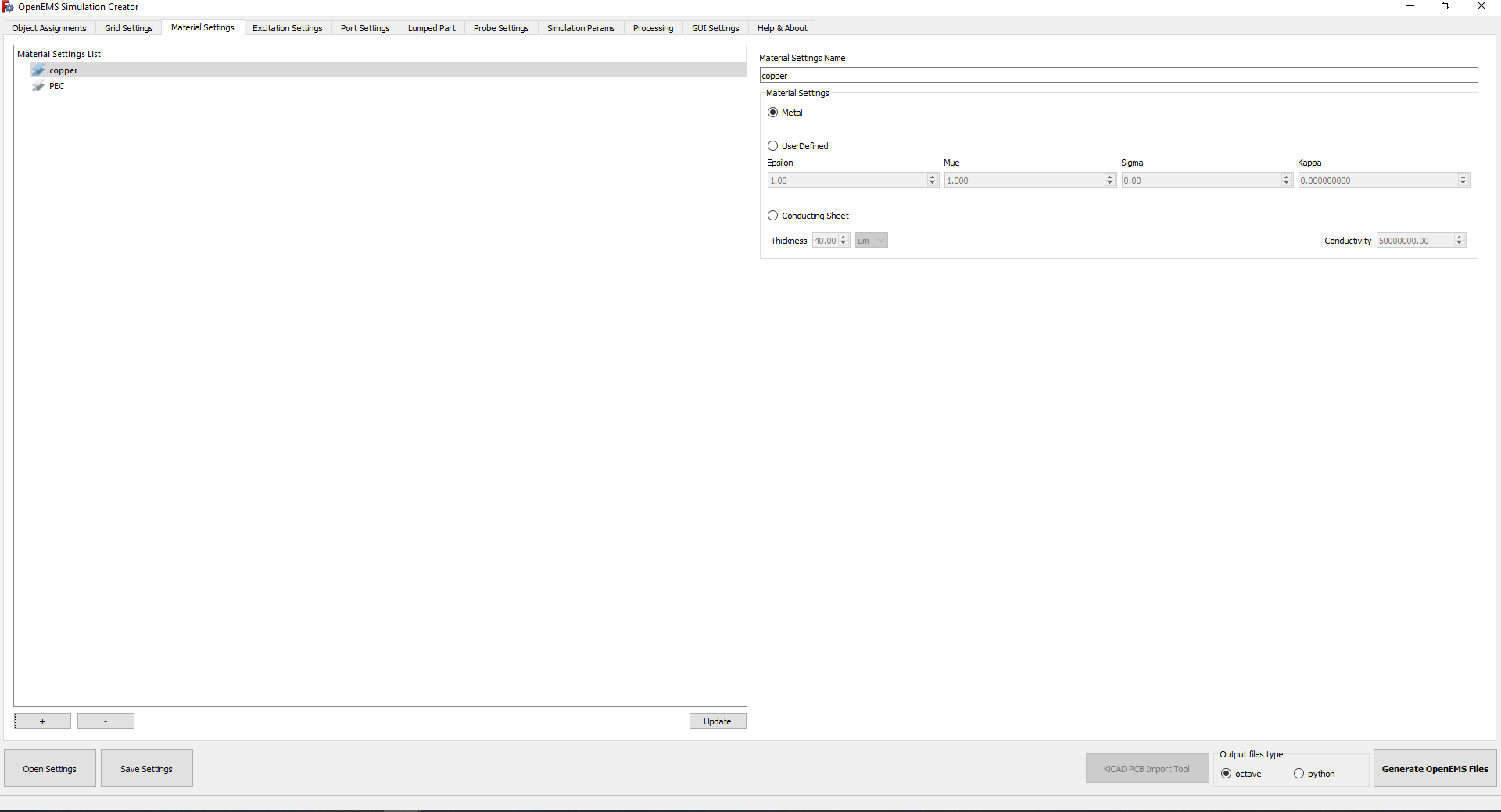
Figure 22 – Creating the copper material
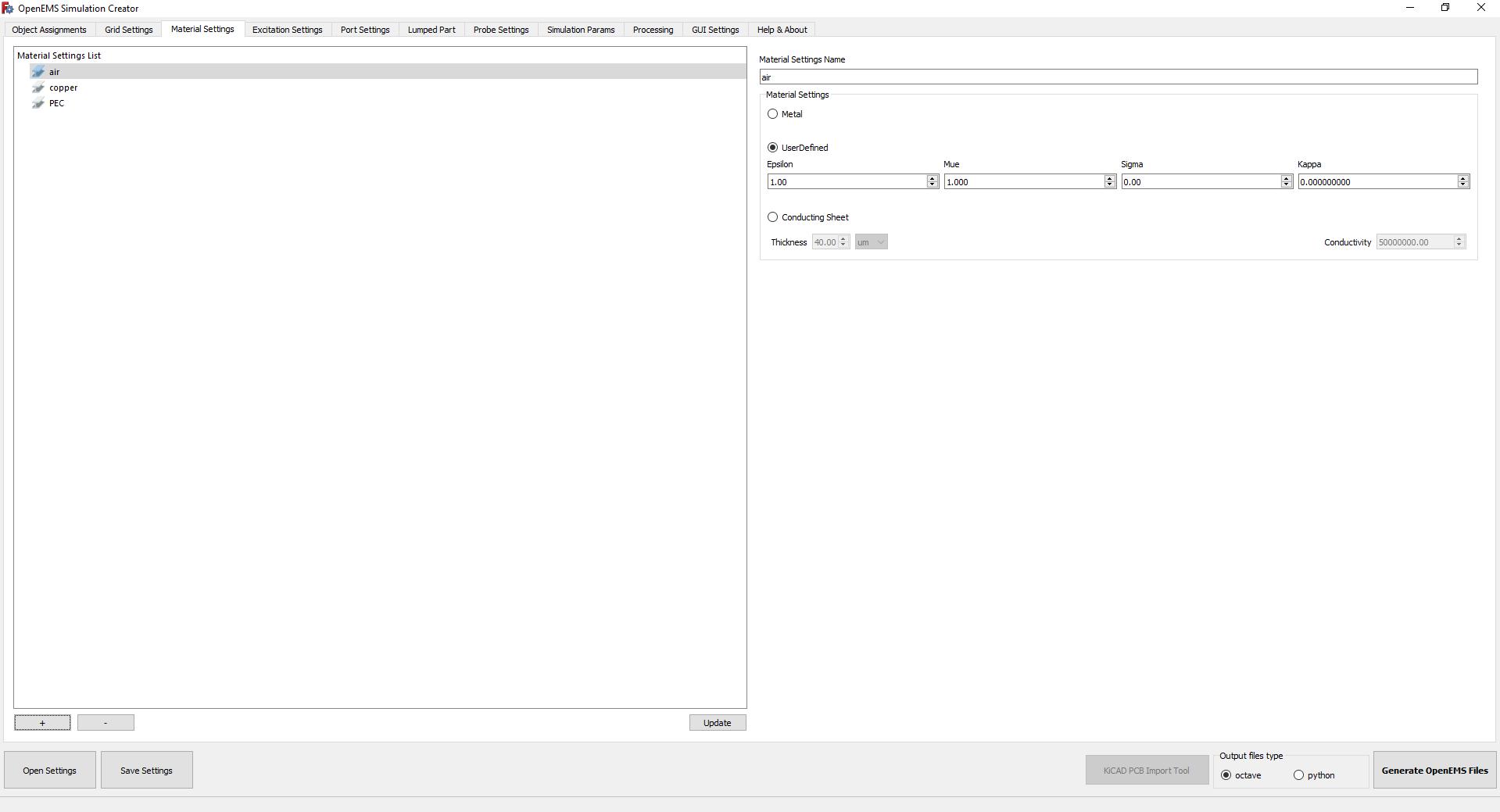
Figure 23 – Defining vacuum/air properties
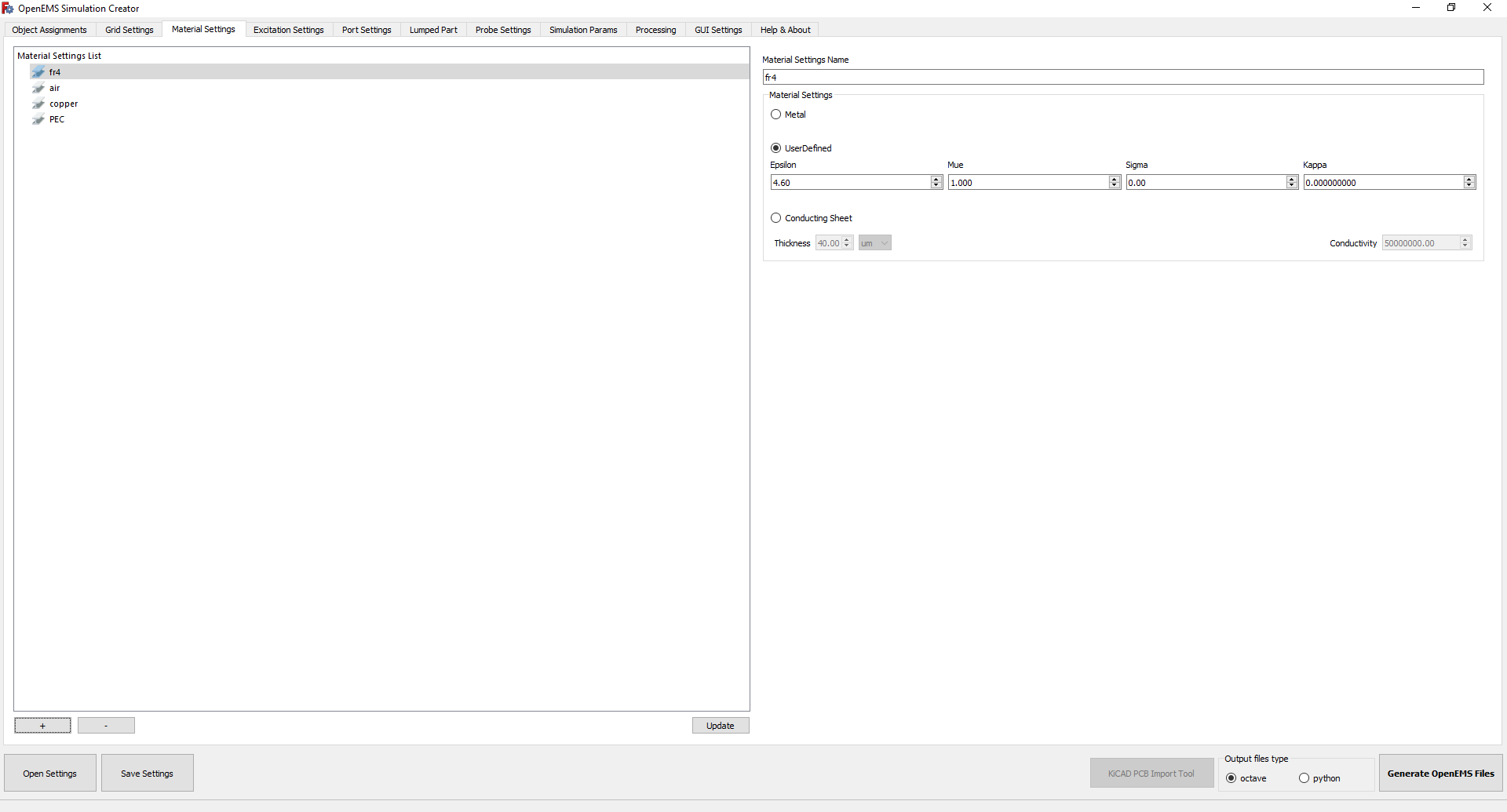
Figure 24 – Setting the FR4 substrate permittivity
Configure the input signal as a Gaussian pulse (gauss), specifying the target center frequency and cutoff parameters for the bandwidth you want to test (Figure 25). Under Port Settings, map your portin object as a lumped port. Assign it a 50 Ohm resistance, select the correct excitation axis, and set the field amplitude (Figure 26). Set up the field probes to output data by selecting “Et Dump” for the efield object and “Ht Dump” for the hfield object (Figure 27a and Figure 27b).Navigate to the Simulation Params tab to establish the stopping criteria for the FDTD solver. Set the max timesteps to 100000 and the min decrement to 0.01 (-20.0 dB). Additionally, apply Perfectly Matched Layers (PML) with 8 cells to all spatial boundaries (xmin, xmax, ymin, ymax, zmin, zmax). These PML boundaries act as absorbers for outgoing electromagnetic waves, preventing unwanted artificial reflections from bouncing back into your model (Figure 28).
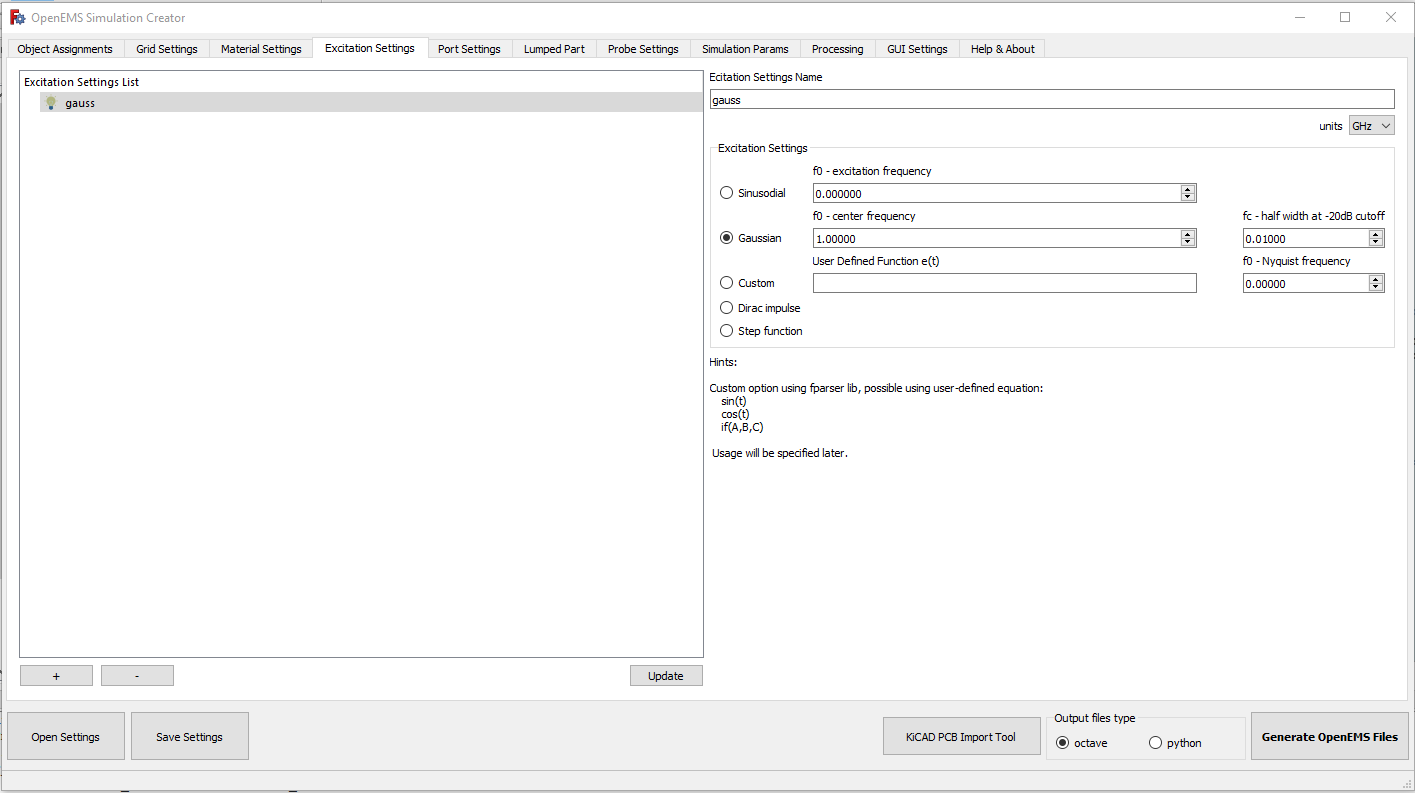
Figure 25 – Configuring the Gaussian excitation pulse
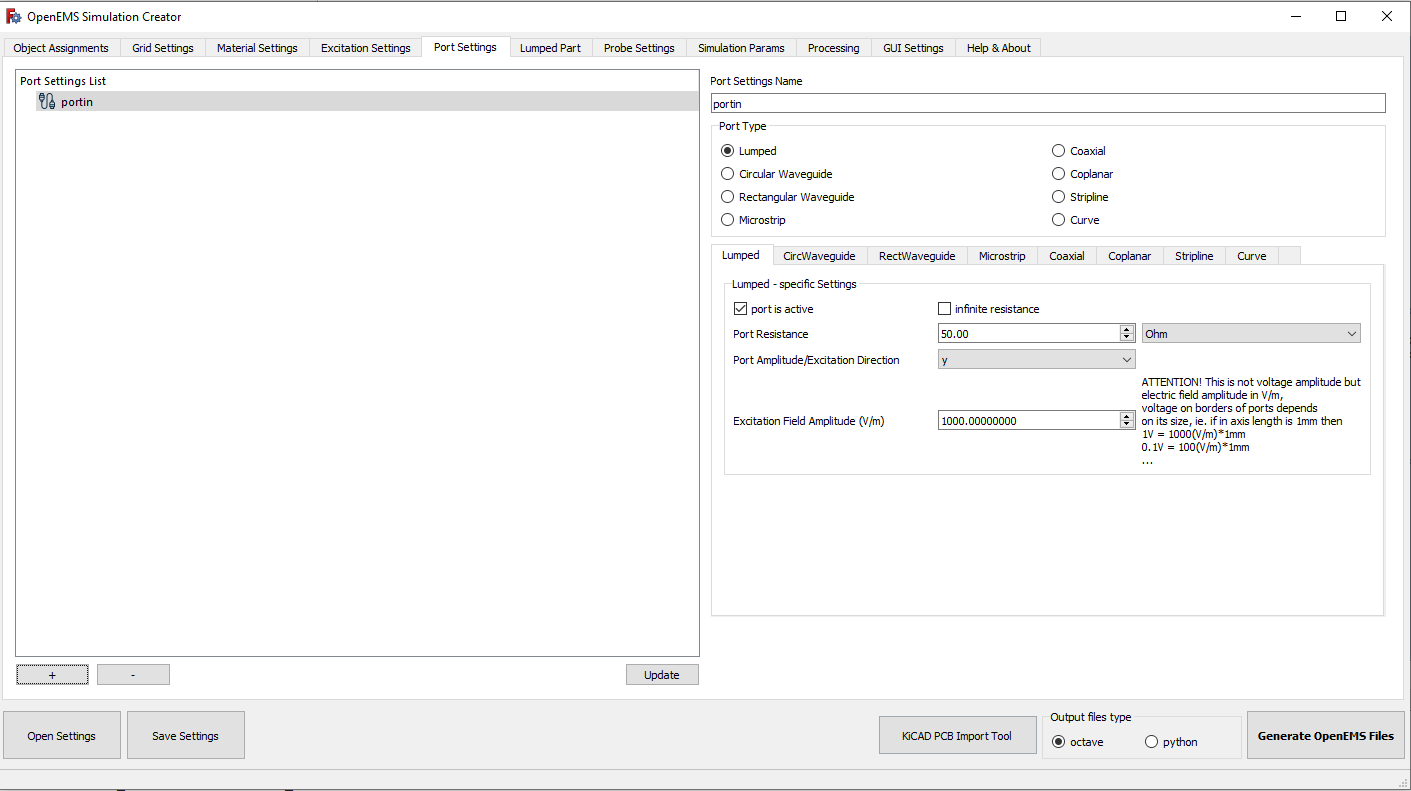
Figure 26 – Setting resistance and amplitude for the lumped port
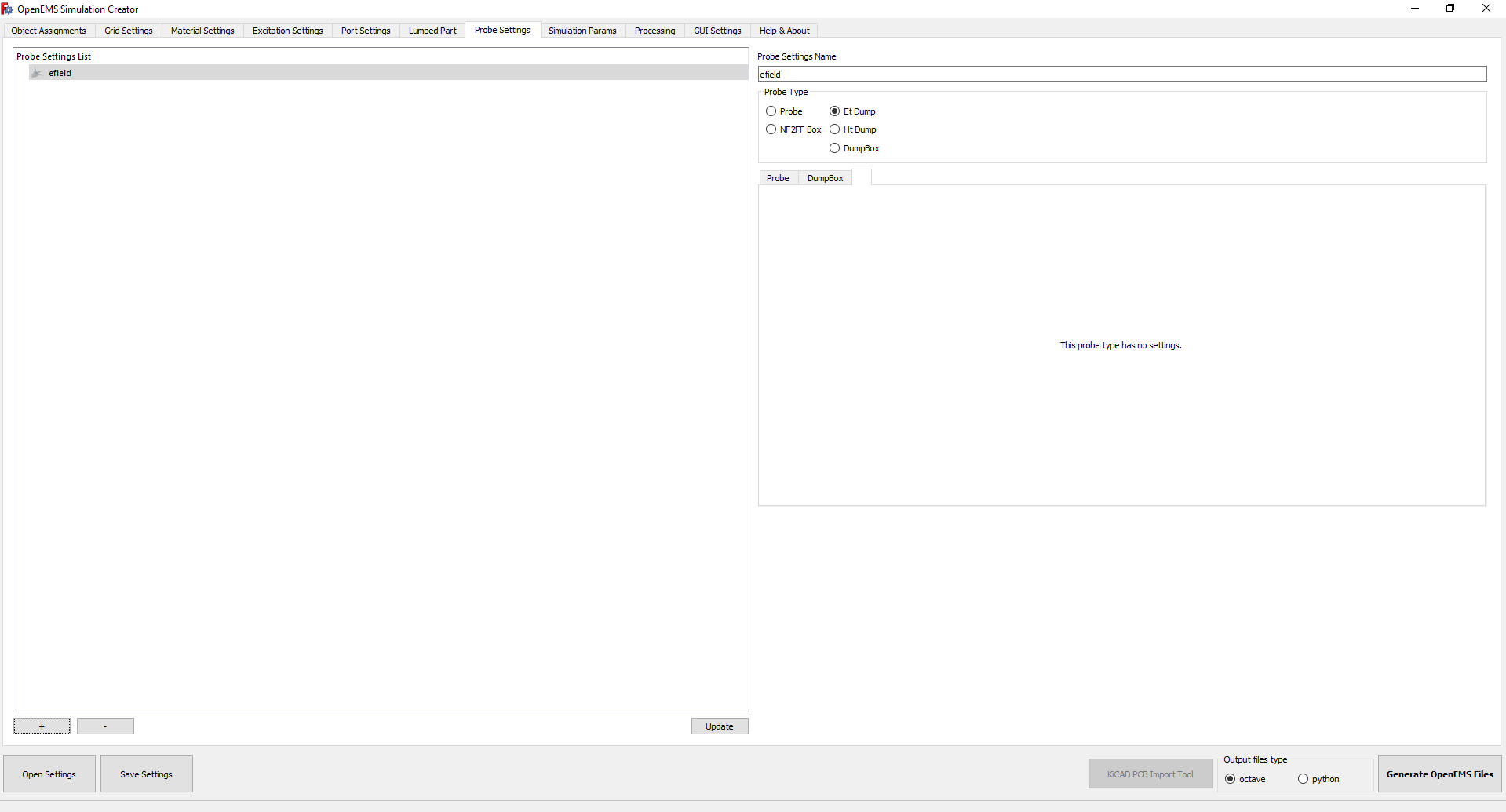
Figure 27a – Configuring the electric field dump
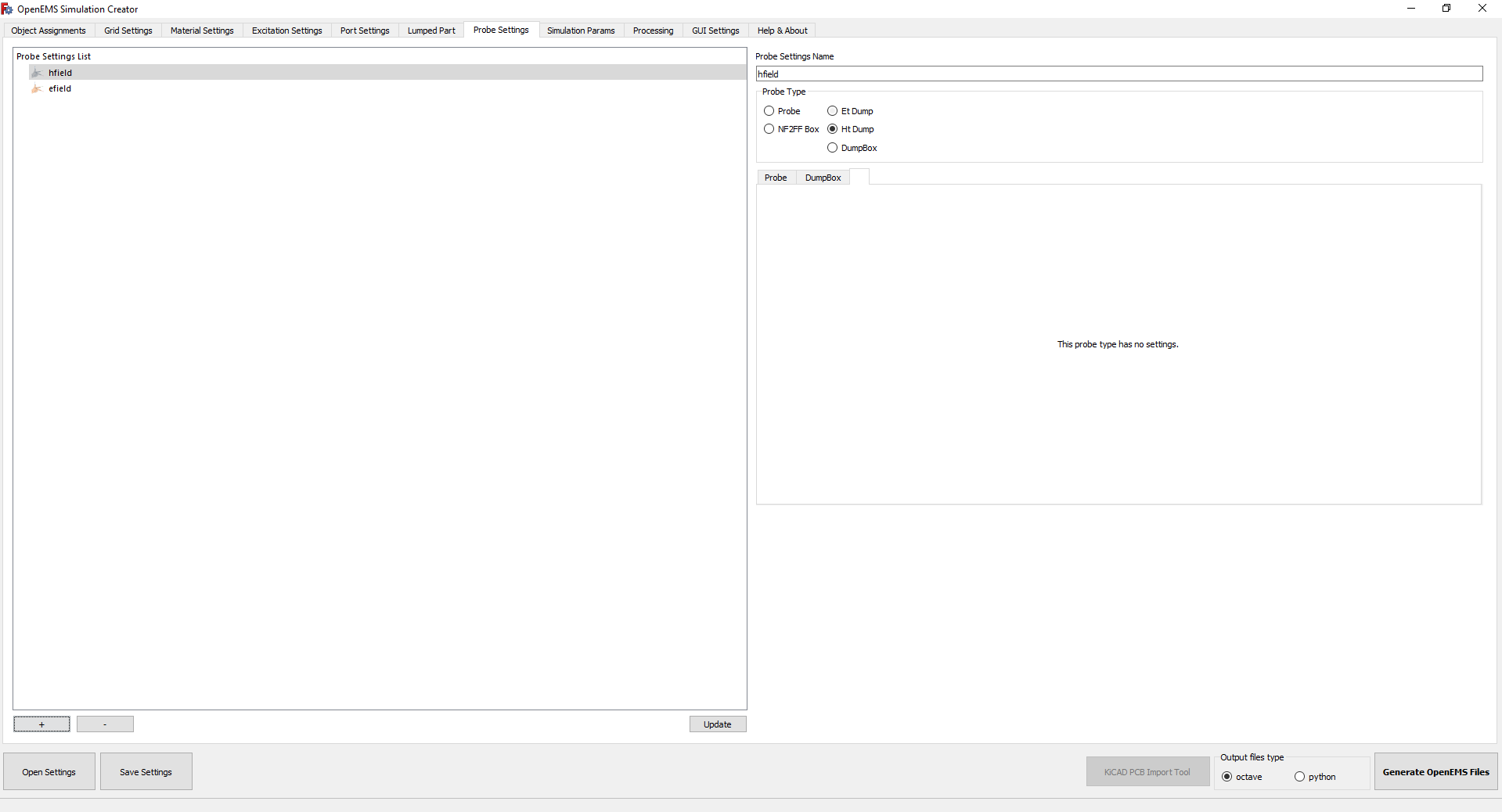
Figure 27b – Configuring the magnetic field dump
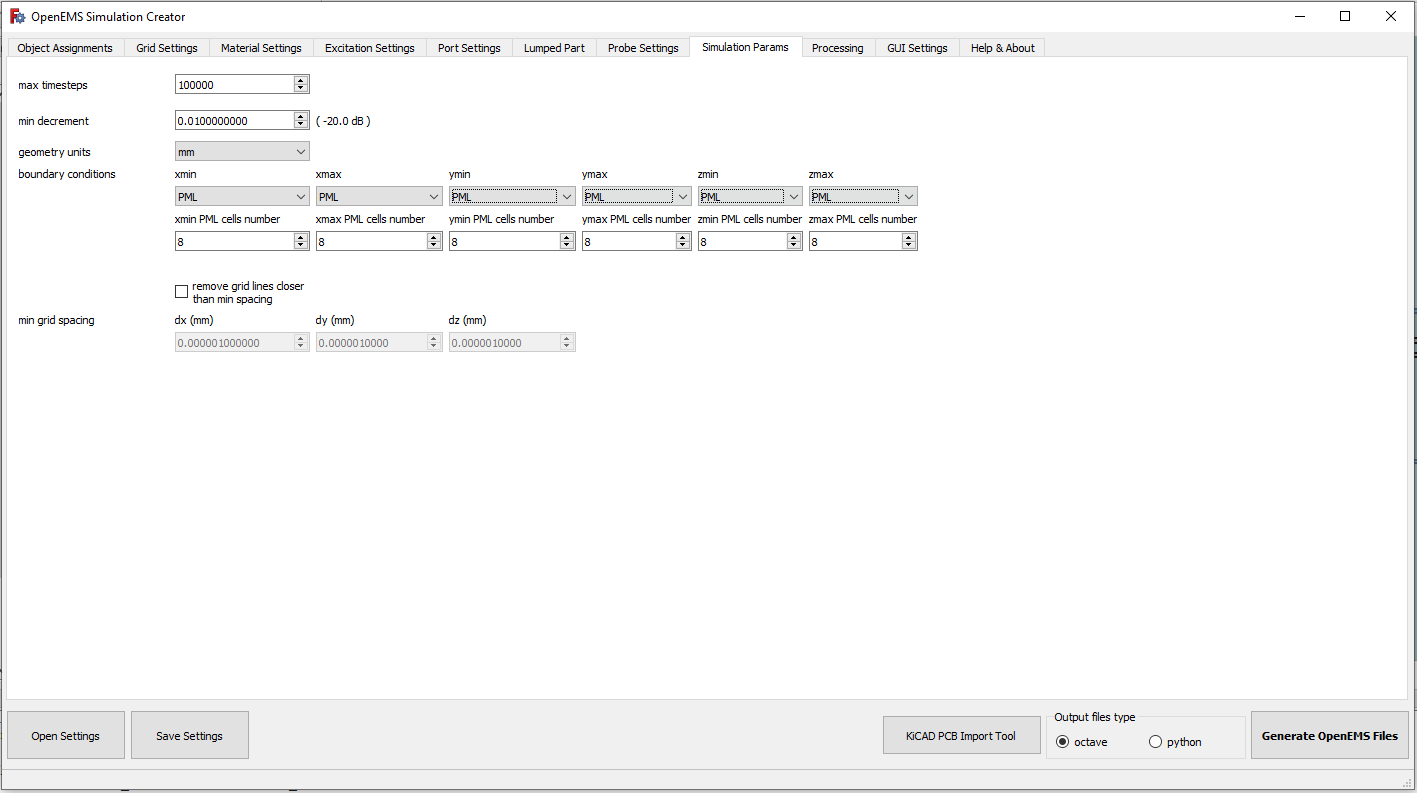
Figure 28 – Applying Perfectly Matched Layer (PML) boundaries
Return to the Object Assignments tab to map your raw FreeCAD objects to the defined materials, grids, and ports (e.g., assign trace to copper). It is absolutely critical that the list of assignments is ordered exactly as shown in Figure 29. In OpenEMS, this top-to-bottom order dictates the material priority where 3D objects overlap. Matching this exact sequence ensures the simulation geometry is layered and calculated correctly without material conflicts.
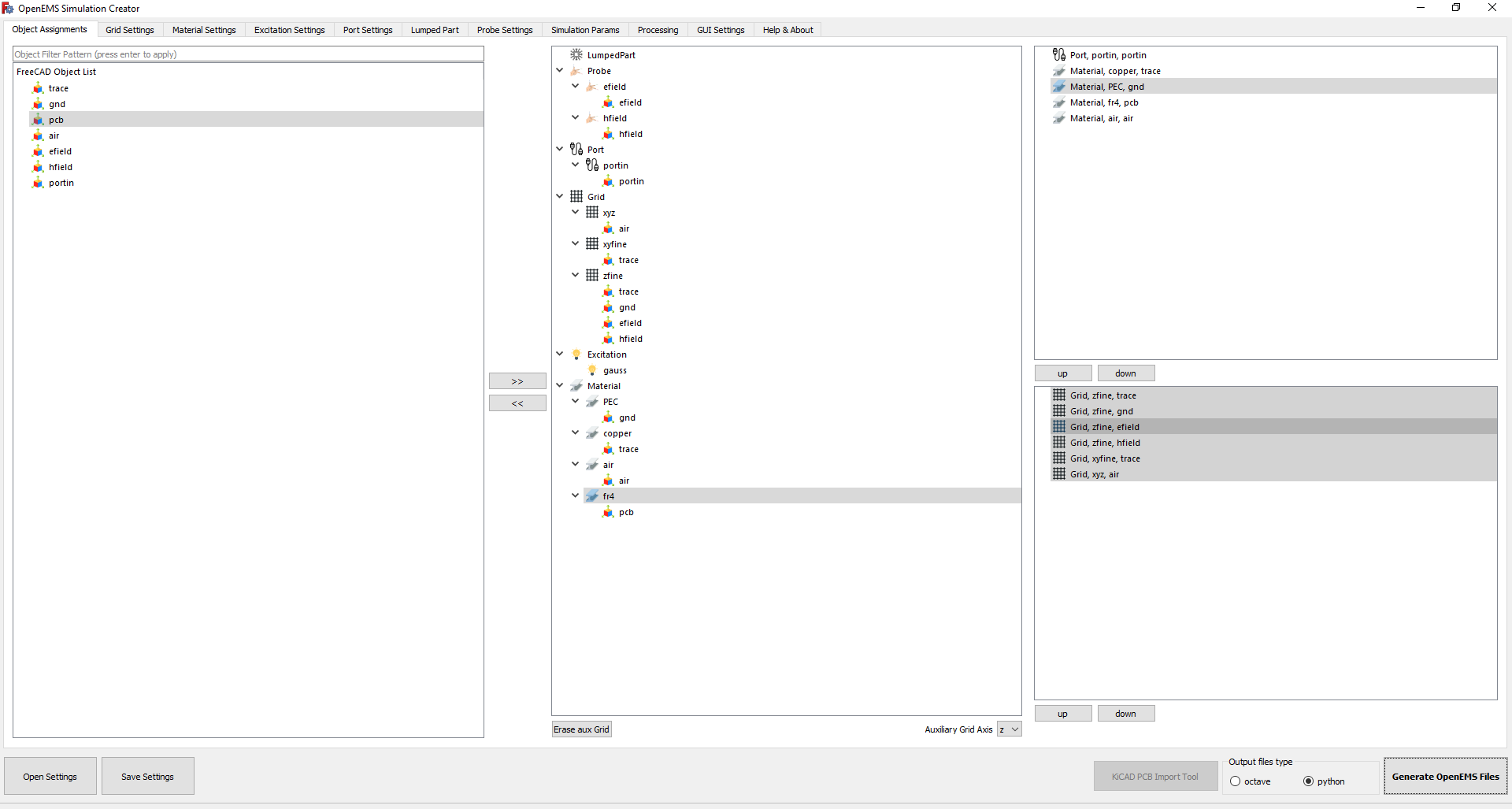
Figure 29 – Assigning objects to materials and grids
Click “Save Settings” and save the simulation configuration as an .ini file.
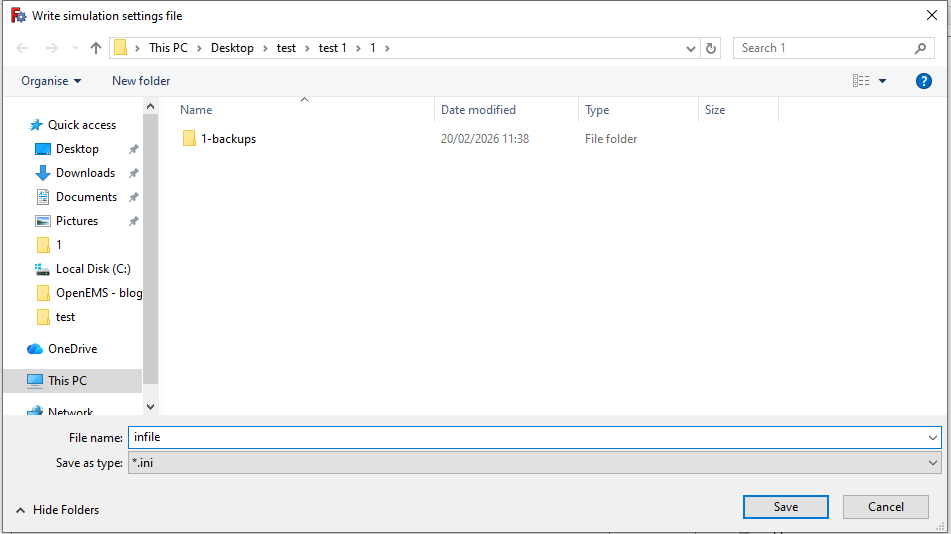
Figure 30 – Saving the configuration file
Now, Click “Generate OpenEMS Files” and FreeCAD will display a prompt confirming that the main Python execution script has been successfully written to your directory.
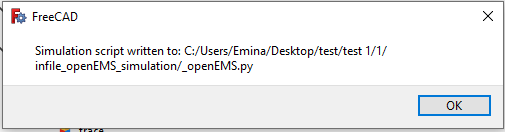
Figure 31 – Script generation confirmation
Check your project folder. You will find the _openEMS.py script alongside .stl files representing the meshed 3D objects (Figure – 32). Open the generated _openEMS.py script in a standard text editor to make necessary manual adjustments before running (Figure – 33).
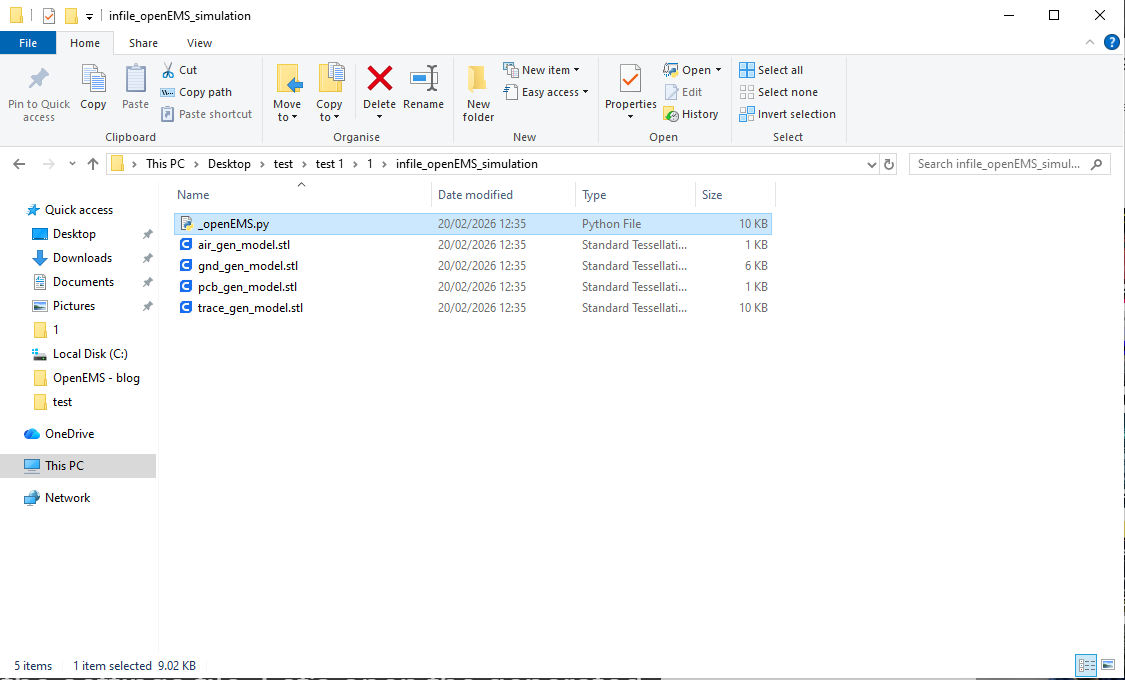
Figure 32 – Output directory with python script and STL files
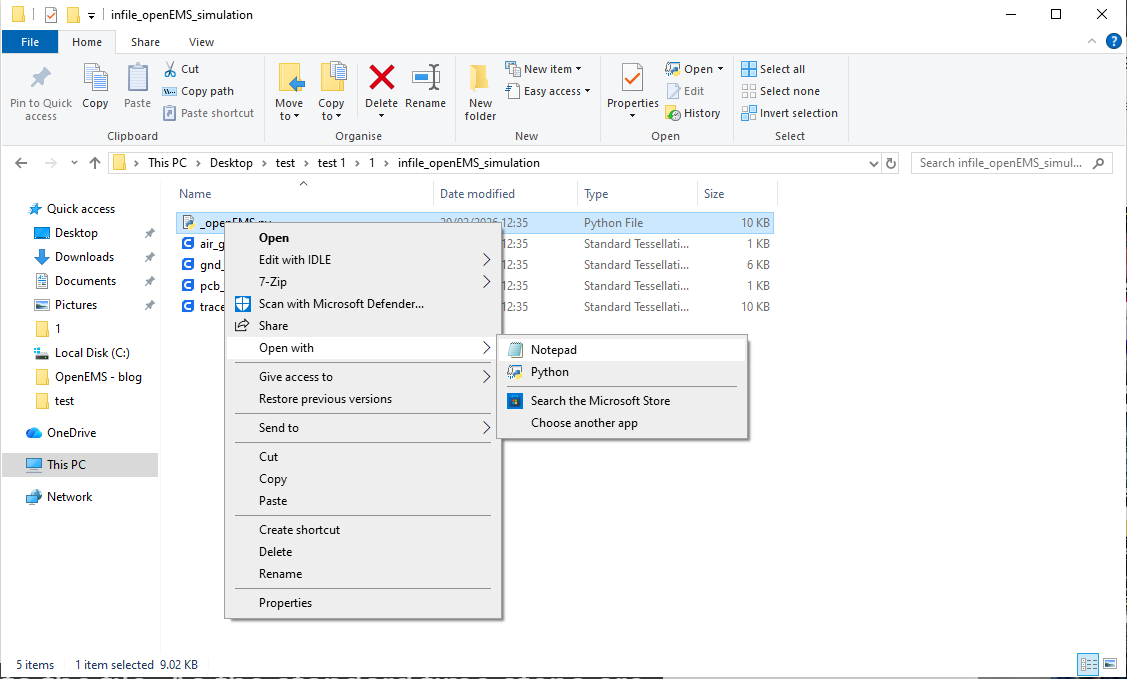
Figure 33 – Opening the Python script for manual editing
Find the line in the code where the FDTD solver is initialized with time steps and end criteria (Figure – 34). Add the OverSampling=100 argument to the FDTD initialization line. This dramatically improves mathematical stability during the run (Figure – 35).
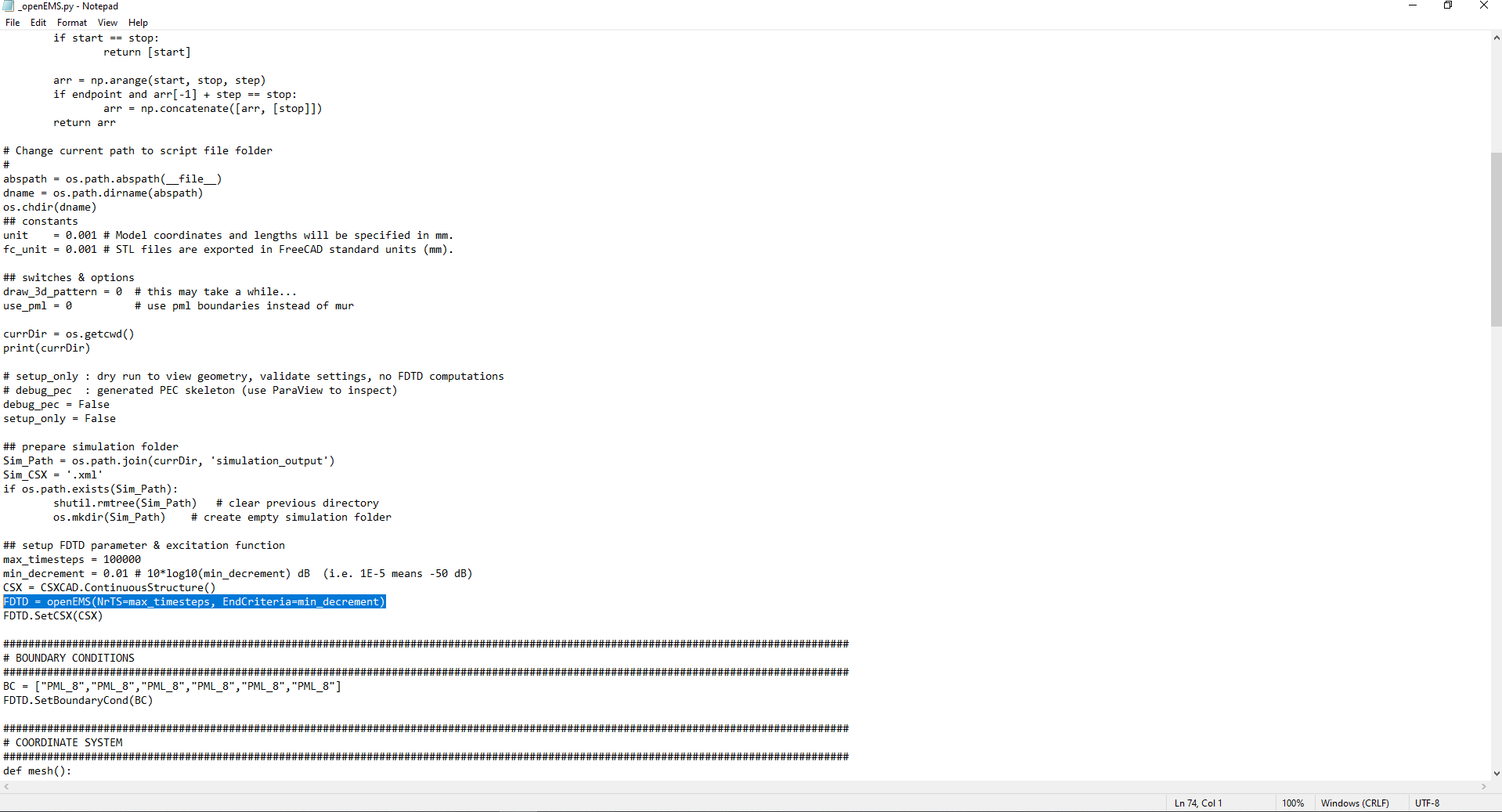
Figure 34 – Locating the FDTD initialization variables
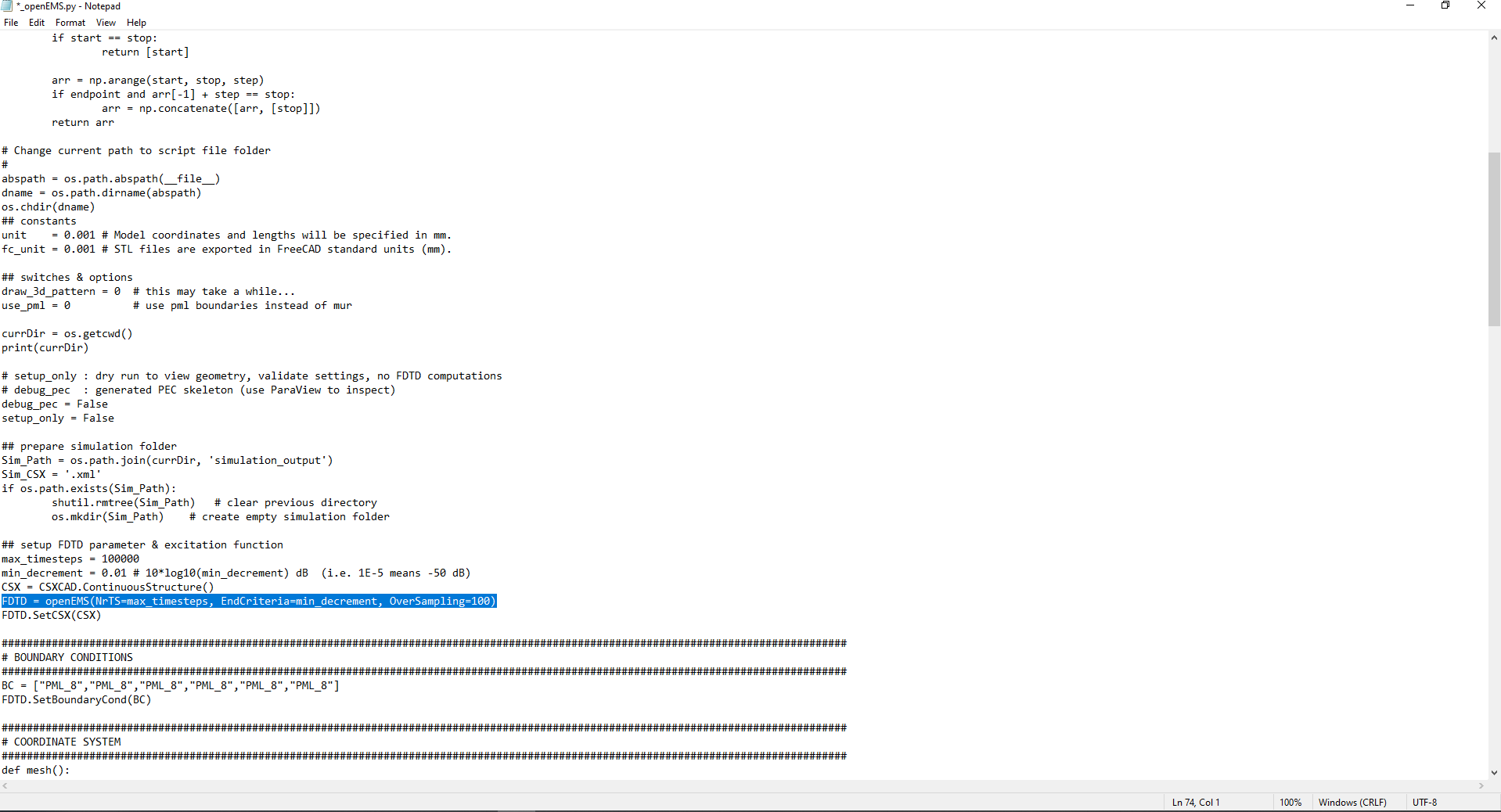
Figure 35 – Adding the OverSampling argument for stability
Scroll down to the probe configuration section and locate a typo: dumnp_type (Figure – 36). Fix the typo by renaming it to dump_type and save the script (Figure – 37).
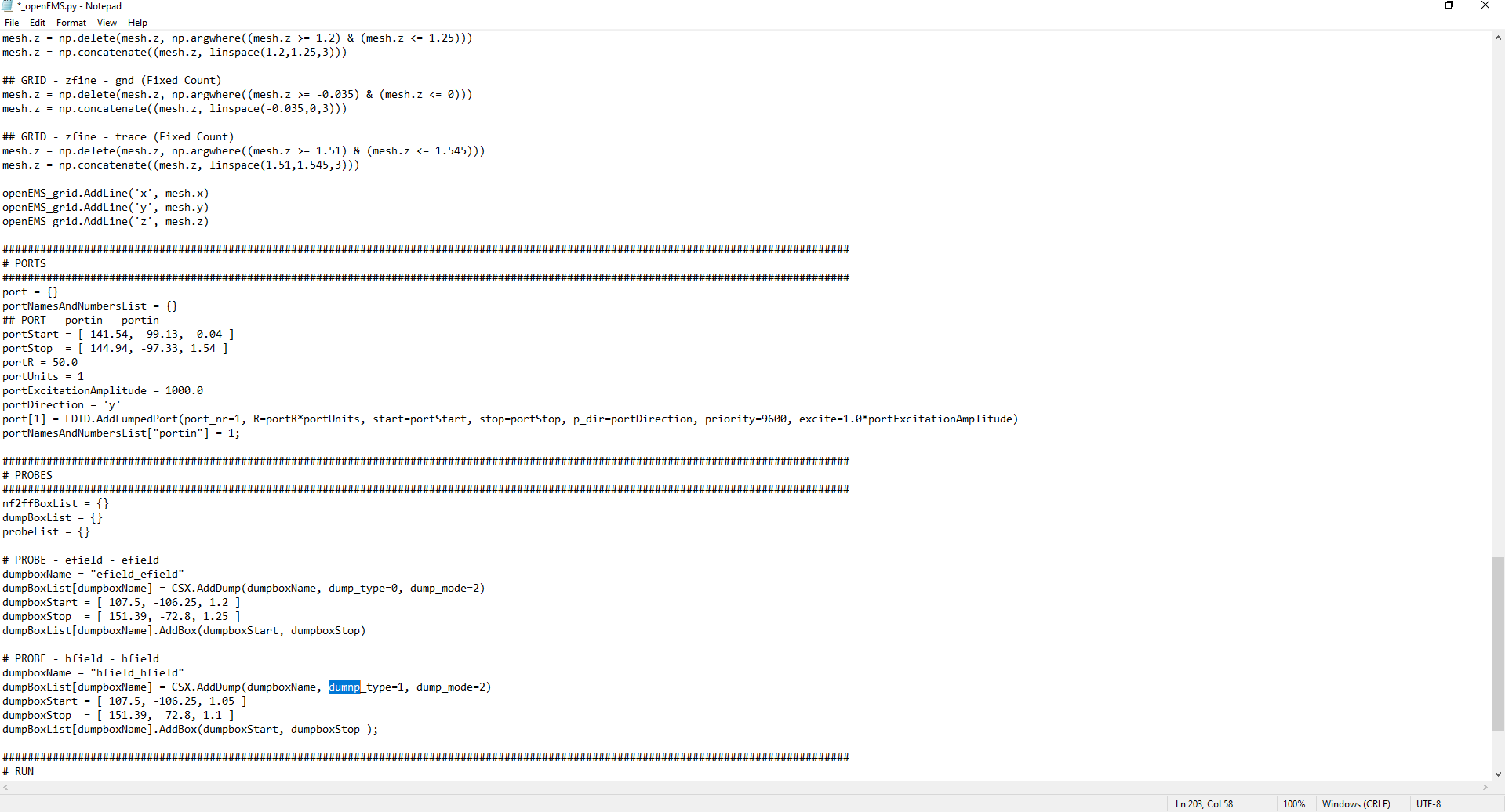
Figure 36 – Identifying the dumnp_type typo in the generated code
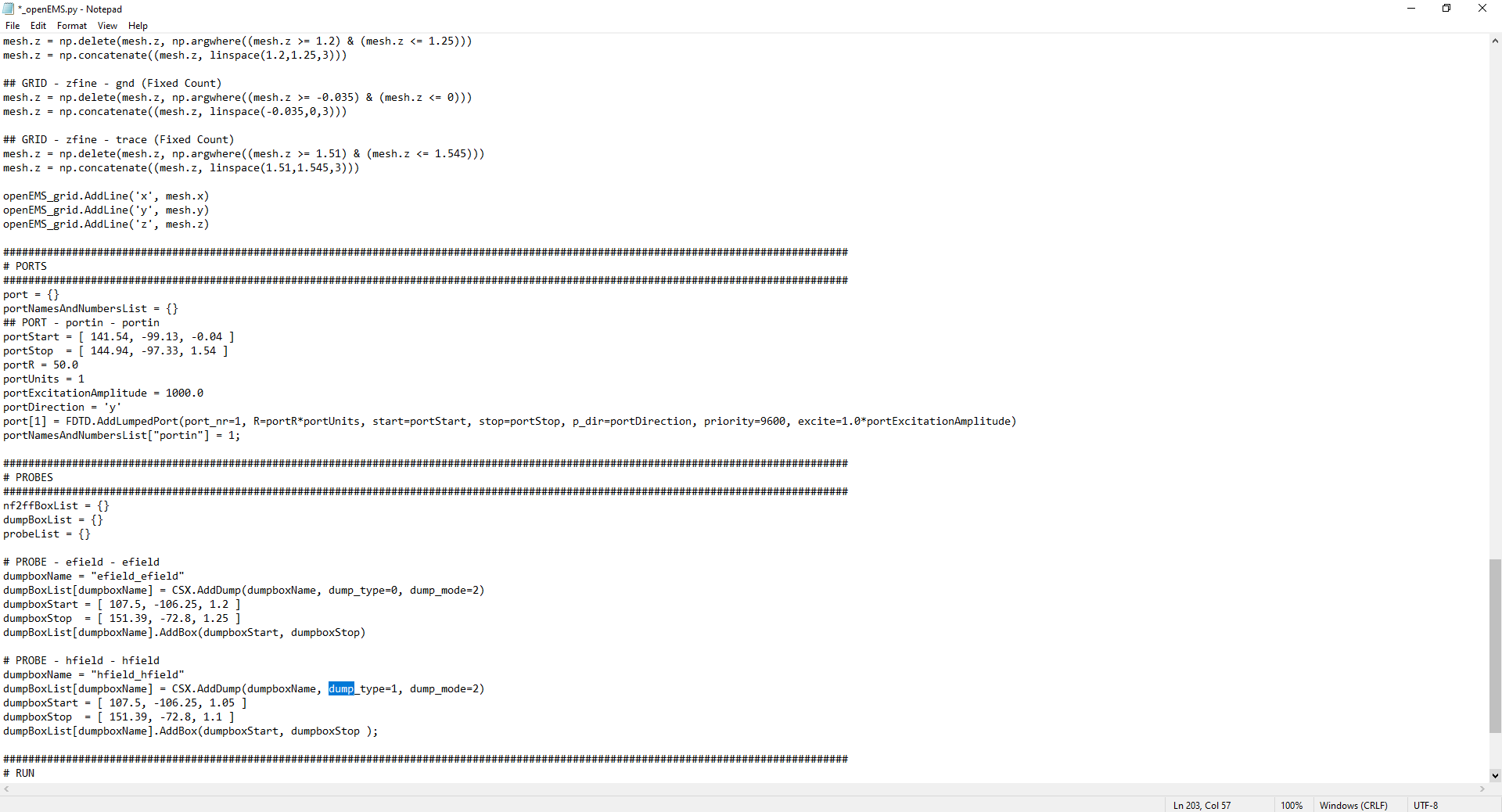
Figure 37 – Correcting the typo to dump_type
Now, double-click the Python script file _openEMS.py. Assuming Python is properly configured on your system, this action will automatically launch a terminal window and begin executing the simulation sequence.
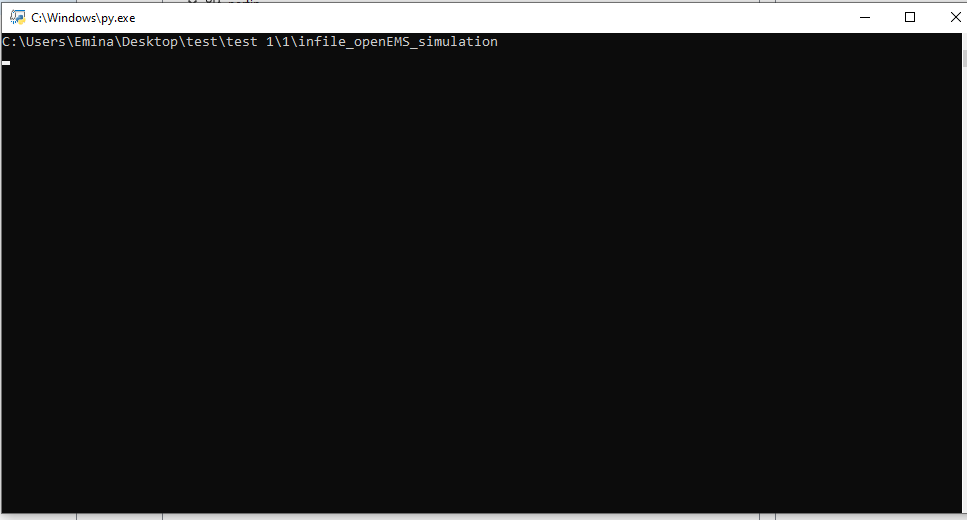
Figure 38 – Double-clicking the Python script to automatically launch the simulation
The script will first launch AppCSXCAD. Use this tool to verify the 3D geometry, material mappings, and mesh integrity before committing to heavy calculations (Figure – 39). In AppCSXCAD, toggle the visibility of dielectric materials like air and FR4 to easily inspect the alignment of the conductive elements (Figure – 40 and Figure – 41).
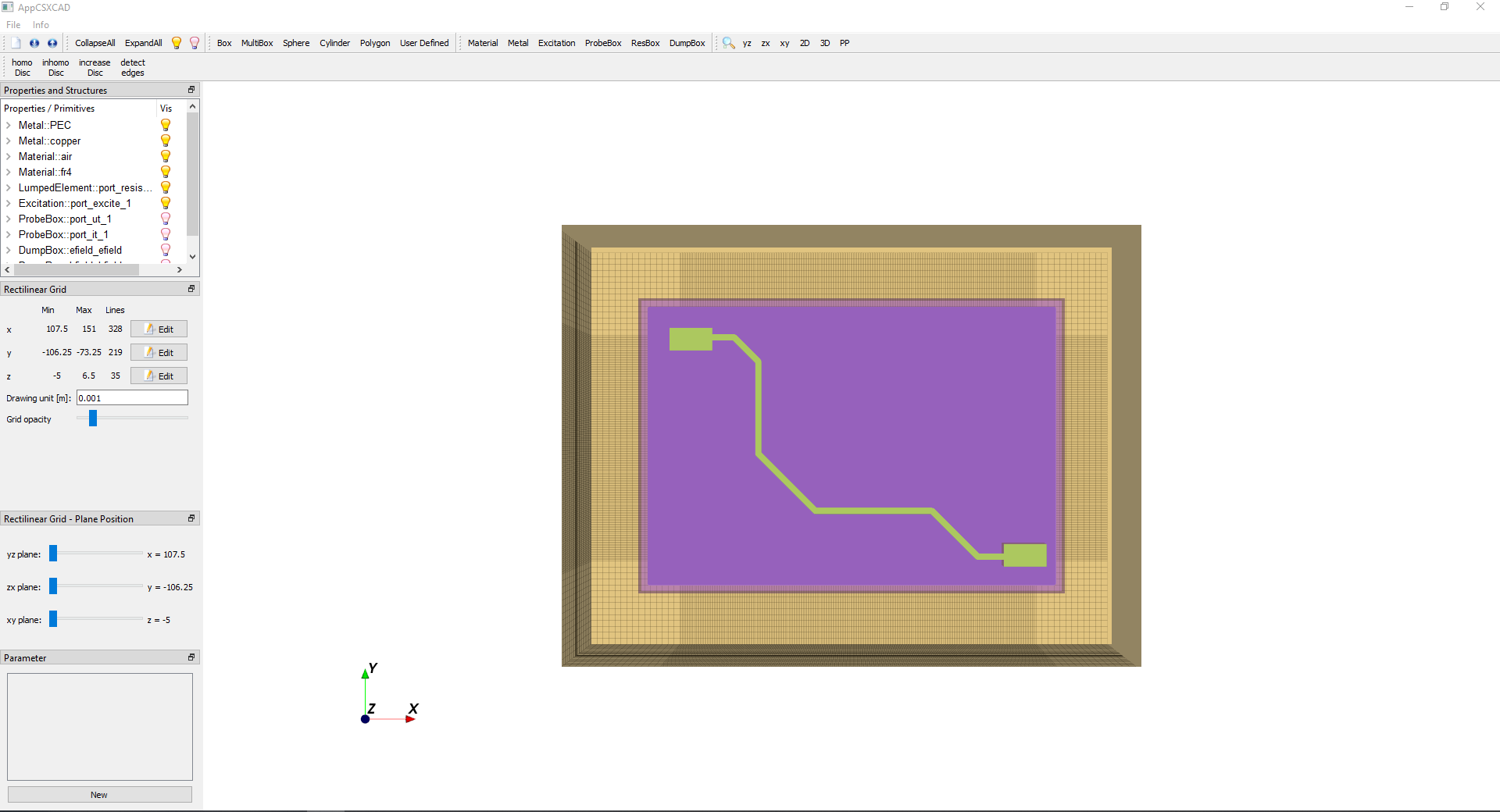
Figure 39 – AppCSXCAD geometry validation interface
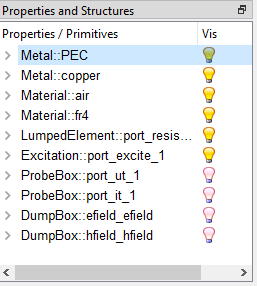
Figure 40 – Managing material visibility in the property tree
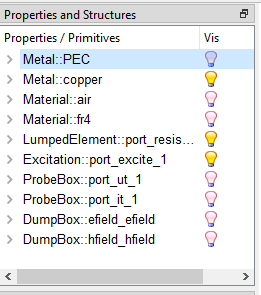
Figure 41 – Isolating conductive elements for inspection
Switch to a 2D planar view. Ensure the mesh lines properly align with the edges of the copper traces to guarantee accurate boundary calculations (Figure – 42). View the board from the side to confirm that the thin vertical layers perfectly fit within the designated Z-axis grid lines (Figure – 43 and Figure – 44).
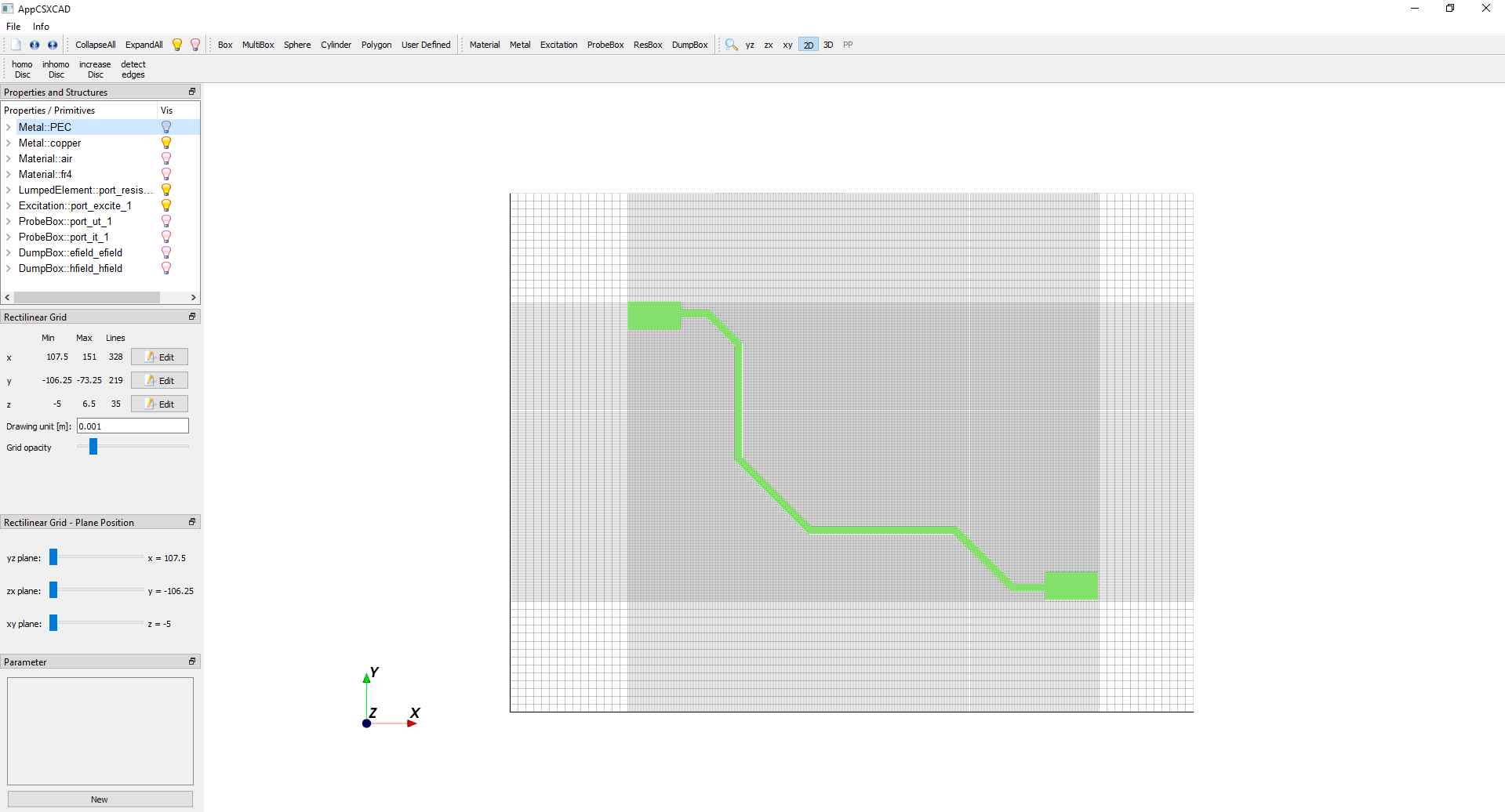
Figure 42 – Validating the 2D mesh alignment against geometry
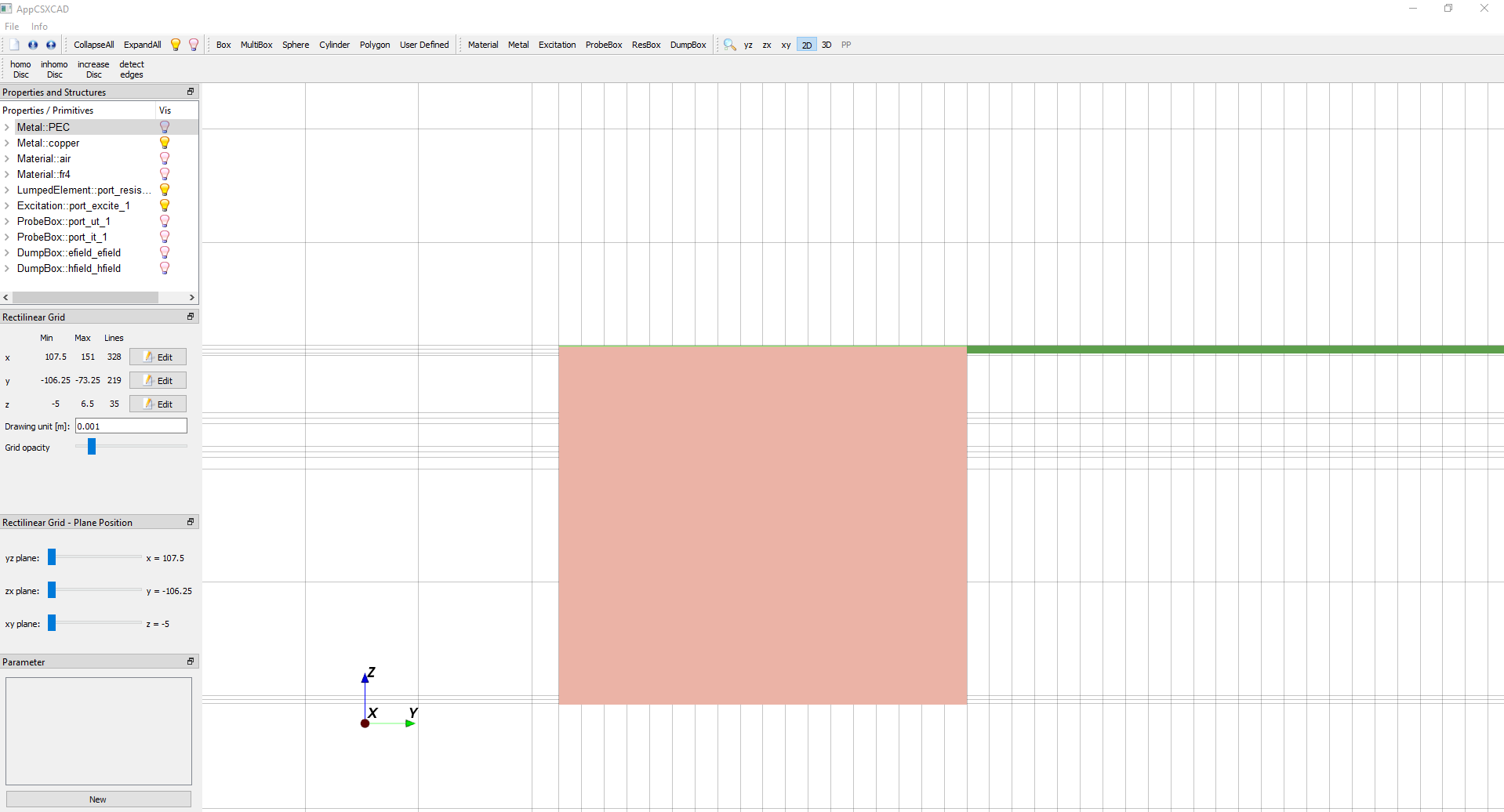
Figure 43 – Checking Z-axis grid boundaries
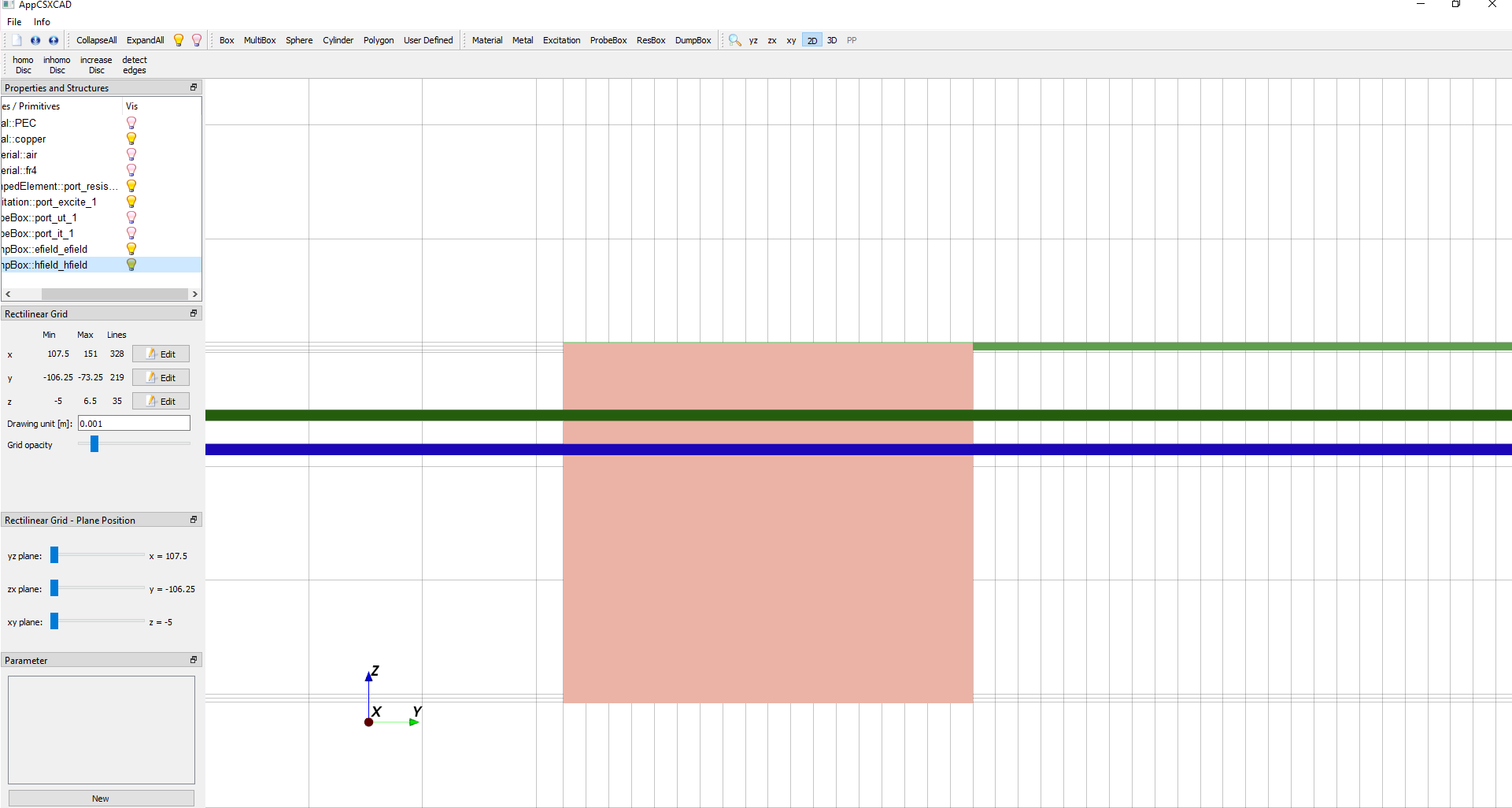
Figure 44 – Ensuring proper mesh density on thin layers
Close AppCSXCAD to proceed. The command prompt will initialize the FDTD operator and calculate the necessary material data (Figure – 45). Once initialized, the solver begins processing the timesteps, providing a live continuous log in the terminal. This log displays the current timestep, the calculation speed in MegaCells per second (MC/s), and the changing energy levels within the computational domain (Figure – 46 and Figure – 47).
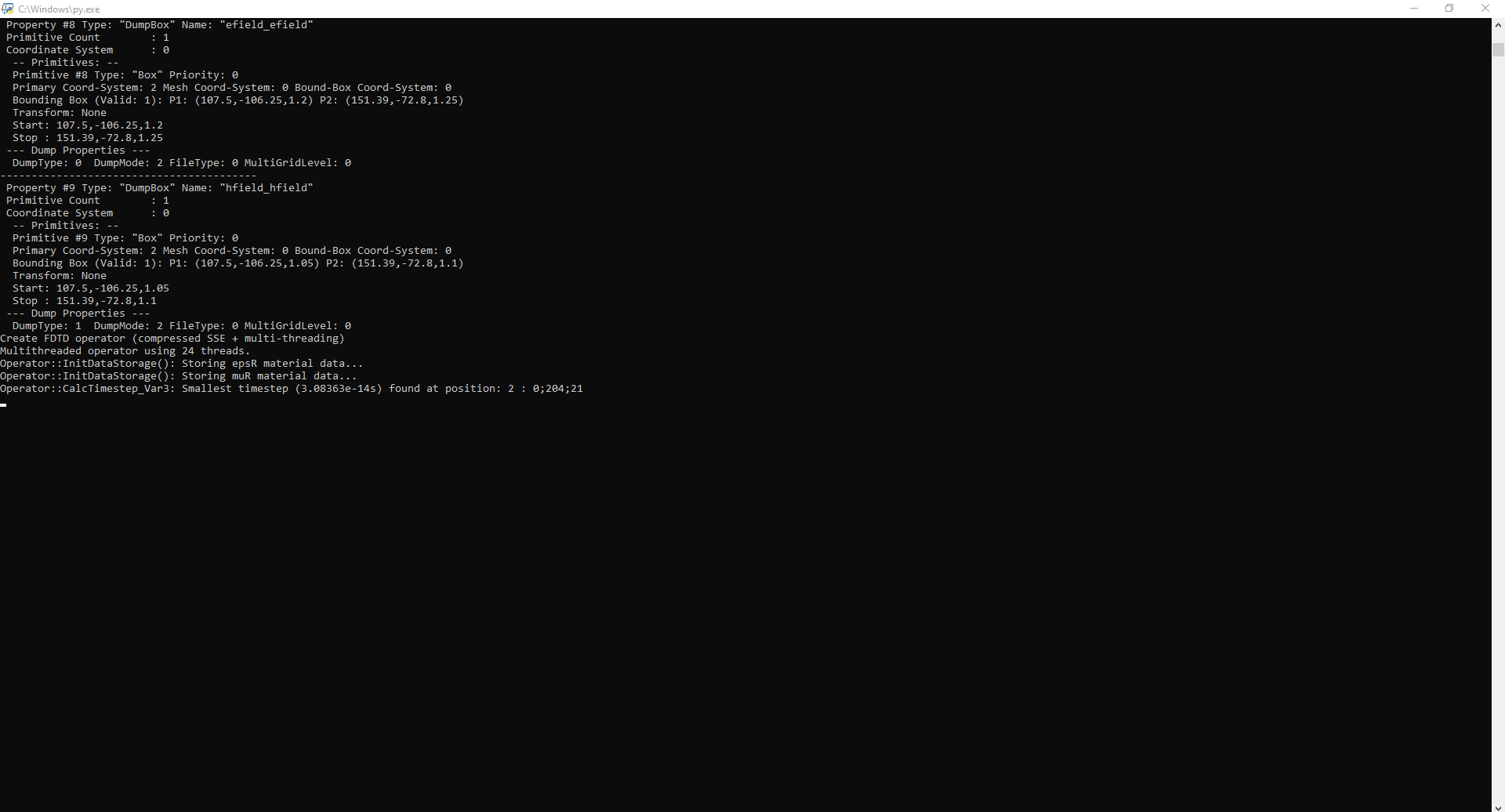
Figure 45 – Terminal output during FDTD initialization
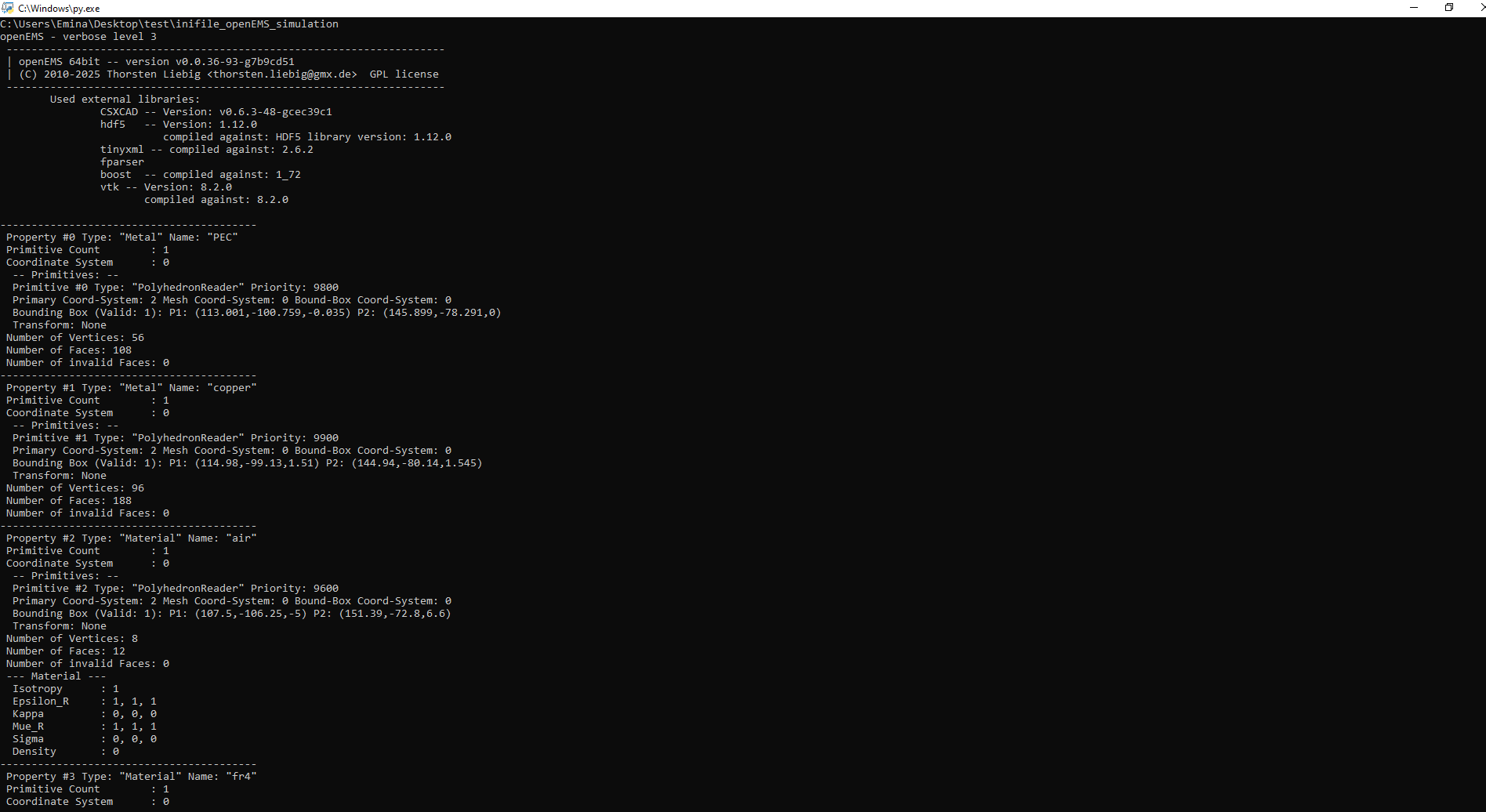
Figure 46 – Terminal confirmation of loaded materials and properties
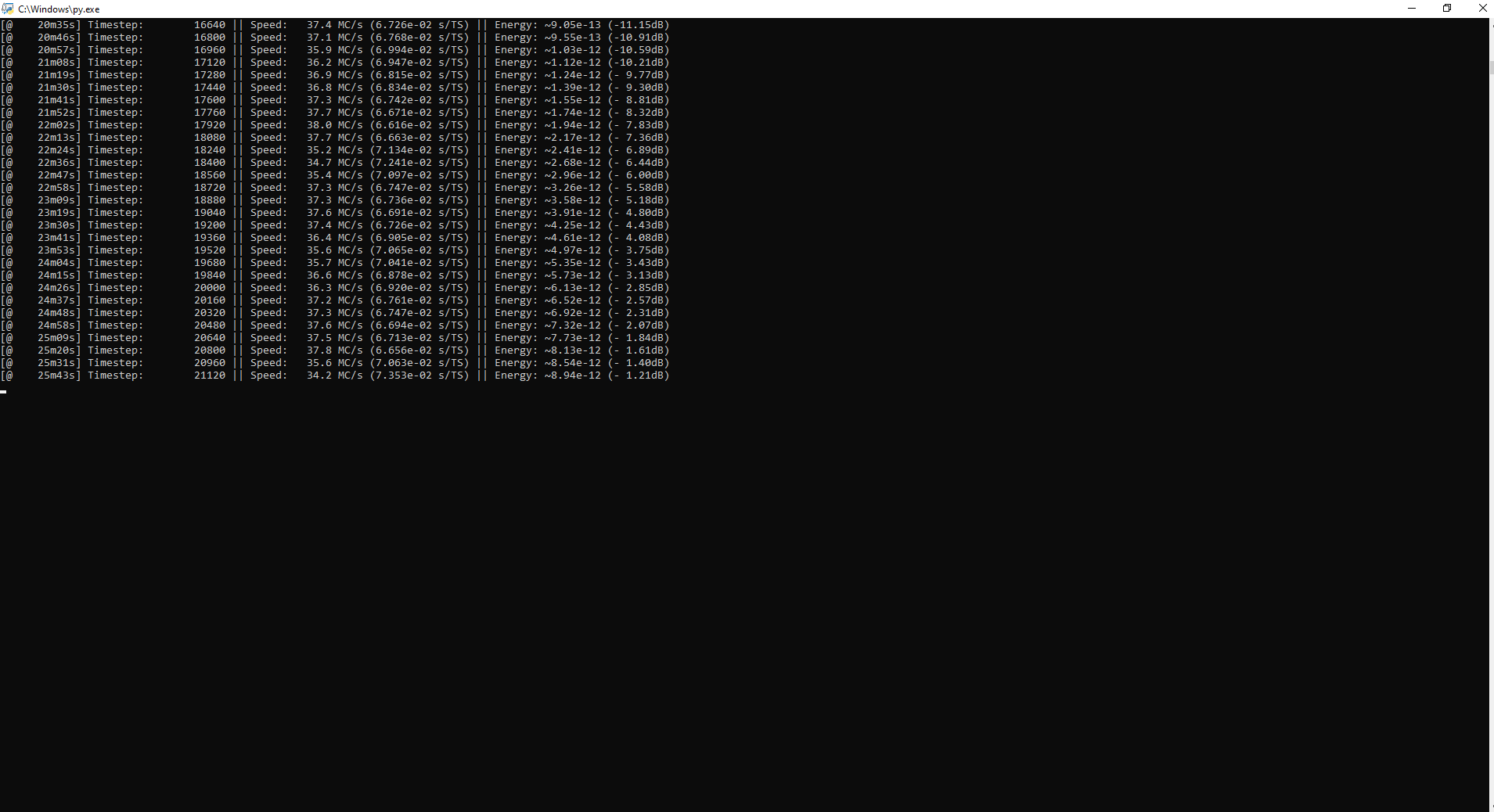
Figure 47 – Terminal log monitoring the timestep progress, simulation speed, and system energy
Once calculations are complete, open ParaView and load the output data. At early timesteps, you will observe the initial electric field injection at the lumped port (Figure – 48). Advance the timeline in ParaView to analyze how the electromagnetic wave propagates along the transmission line and behaves around bends (Figure – 49). Load the magnetic field data to evaluate the H-field distribution, allowing you to identify potential radiation or crosstalk issues around the active trace (Figure 50).
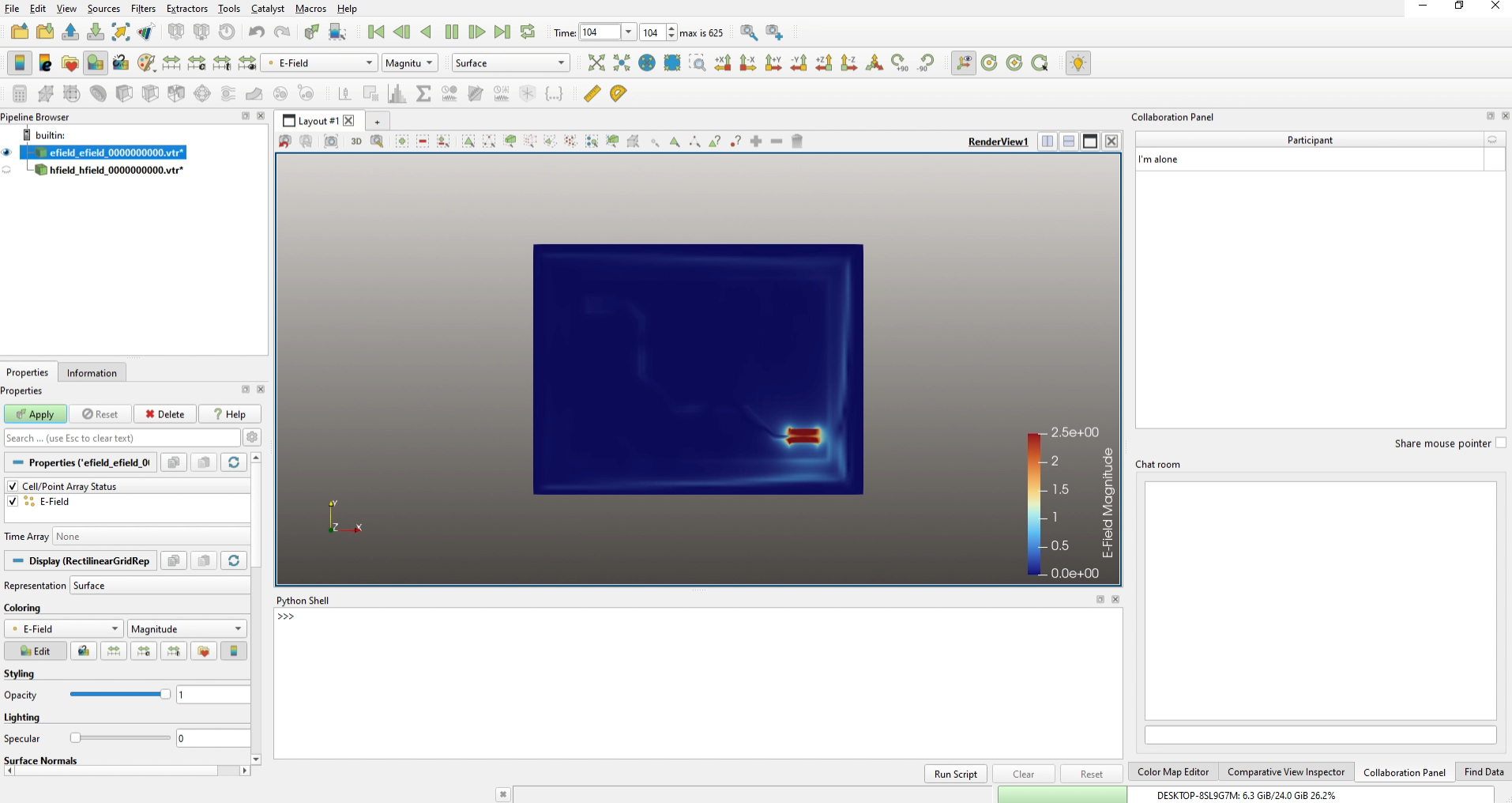
Figure 48 – Early-stage E-field visualization in ParaView
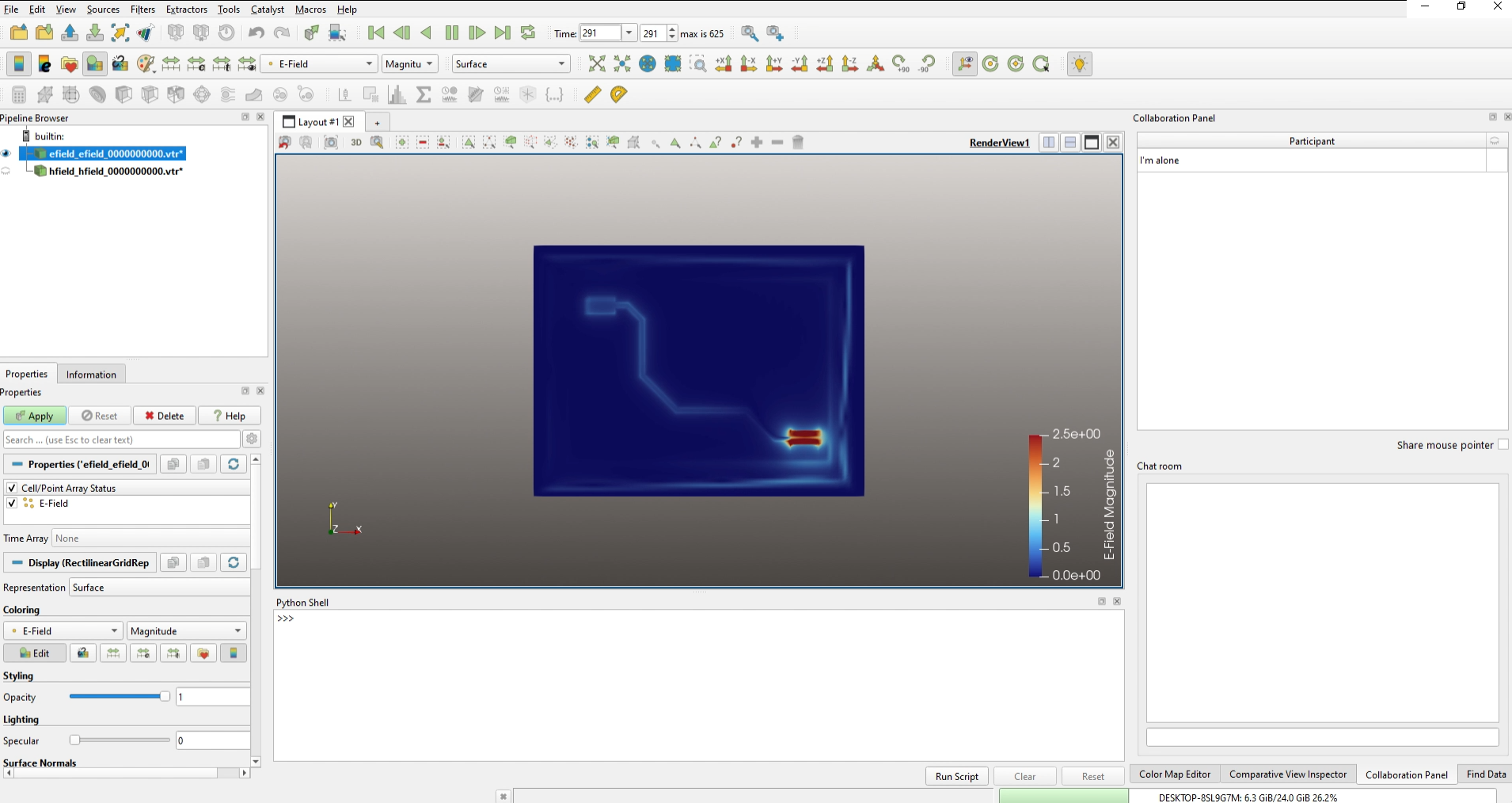
Figure 49 – E-field wave propagation along the trace
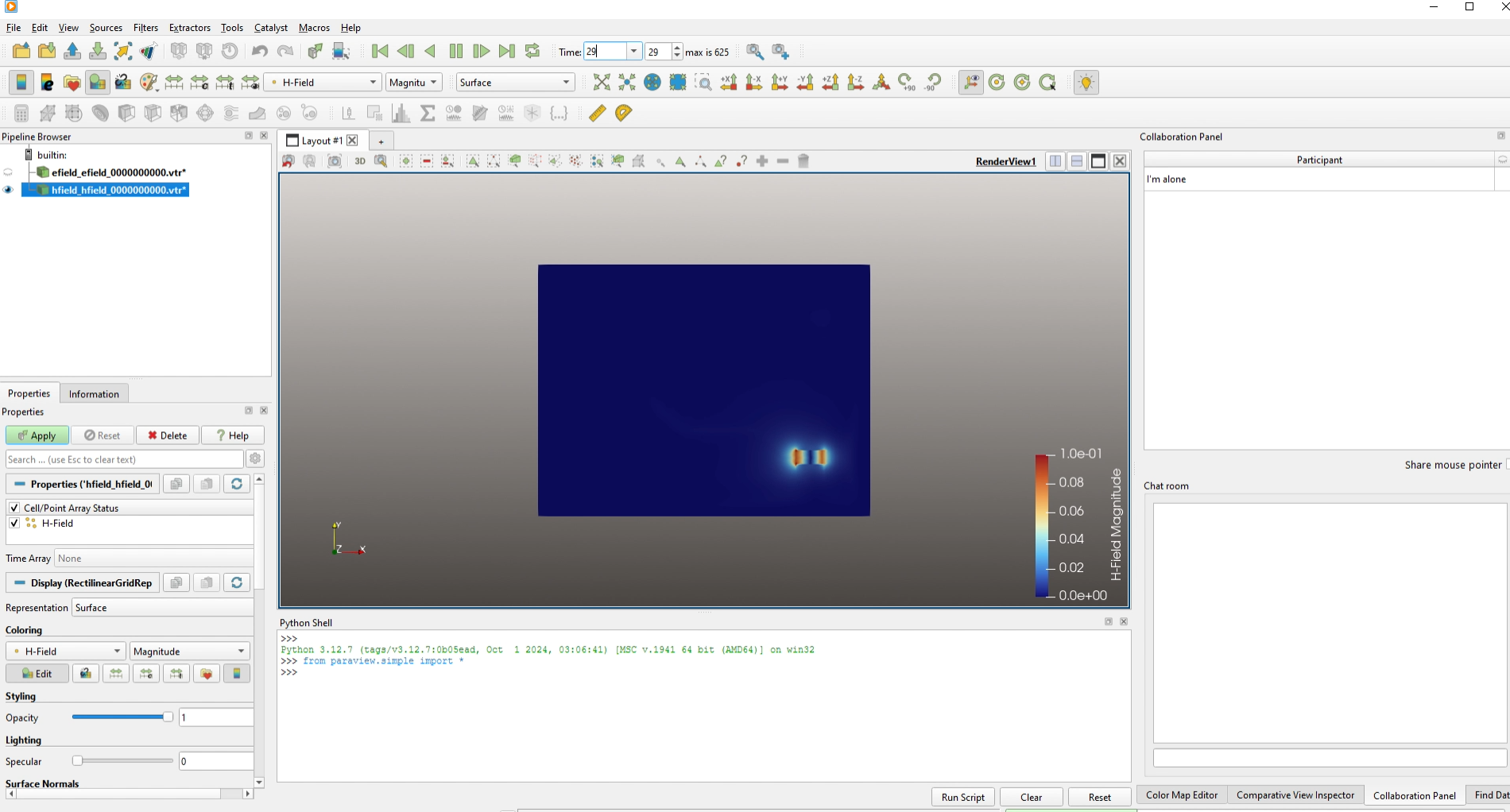
Figure 50 – H-field distribution at a specific timestep
3 Conclusion
This open-source workflow provides a powerful, cost-free method for 3D PCB simulation. Personally, while installing the OpenEMS macro was challenging, successfully visualizing the electromagnetic fields in ParaView made the effort entirely worthwhile.
The main limitation is software compatibility: this process relies on FreeCAD 0.19, which only supports older KiCAD 6 files. Overcoming this to support newer KiCAD versions will require further investigation into updated tools or export scripts.
Our next step is to resolve these version issues and demonstrate two practical examples, a properly designed trace versus a poorly routed one, to show exactly how to analyze and minimize unwanted electromagnetic emissions.

Emina Imširović
Junior Electronic Engineer
A Junior Electronic Engineer with hands-on experience in the complete hardware development lifecycle, from schematic and PCB design to circuit testing and assembly. She is experienced at antenna adjustments and independently researching and implementing practical electronic solutions to meet project needs

S